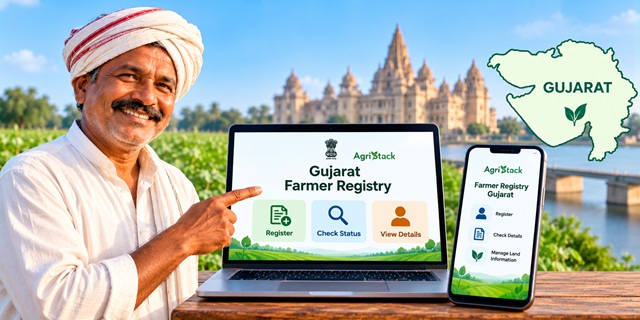
Farmers in Gujarat can use the official Farmer Registry portal to register for a unique Farmer ID and access digital farmer registration services. The Government of Gujarat provides online access through its dedicated Gujarat Farmer Registry portal, along with a mobile app and registration assistance through village-level VCE/CSC centres. If you have already registered through a CSC or a government camp, you may need to create a separate portal account before logging in. This guide explains how Gujarat Farmer Registry works, how to start registration, how to use the website and mobile app, and how to check your enrollment details.
What Is Gujarat Farmer Registry?
Gujarat Farmer Registry is a digital initiative launched to create a unique Farmer ID for farmers in the state. The registry operates under the Government of India's AgriStack initiative, which aims to maintain organized digital information about farmers and connect farmer identities with relevant land records.
The official Gujarat Farmer Registry website states that the system will create a unique Farmer ID for each farmer. Farmers can access the dedicated portal to check enrollment status, view farmer details, and use other available services.
The registry is designed to support the digital delivery of agriculture-related services. However, having a Farmer ID does not automatically guarantee approval for every government scheme. Each scheme may have separate eligibility conditions and application requirements.
If you want to understand the Farmer ID system across India, read our complete guide to Farmer ID in India.
What Is Gujarat Farmer ID and Why Is It Important?
A Farmer ID is a unique digital identity created for a farmer under the Farmer Registry. Under AgriStack, the registry connects farmer information with relevant state land records to help government departments identify farmers and manage agriculture-related services.
The Ministry of Agriculture and Farmers Welfare explains that AgriStack includes three main digital components: the Farmer Registry, geo-referenced village maps, and the Crop Sown Registry. State governments maintain these registries as part of the wider digital agriculture system. You can read more on the official PIB website.
Farmer ID can help support services related to agricultural schemes, credit, crop insurance, procurement, and other farmer-focused programmes. The exact use of the ID depends on the relevant scheme and the rules followed by the department providing the service.
Gujarat Farmer Registry Official Portal
The Government of Gujarat provides a dedicated website for Farmer Registry services. Use the official links below to access the relevant service.
| Service | Official Link |
|---|---|
| Gujarat Farmer Registry Homepage | Open Farmer Registry Portal |
| Check Enrollment Status | Check Enrollment Status |
| View Farmer Details | View Farmer Details |
| Farmer Registry Gujarat Mobile App | Open Google Play Store |
| Gujarat iKhedut Portal | Visit iKhedut |
Use the Farmer Registry website for Farmer ID-related services. The iKhedut portal provides separate agriculture-related schemes and services, so do not confuse applying for a scheme with registering for a Farmer ID.
How to Register for Gujarat Farmer ID Online
Farmers can start by visiting the official Gujarat Farmer Registry website. The Gujarat Government also states that farmers can register through the web or mobile app, or seek assistance from a village-level VCE/CSC centre.
Follow the instructions below to begin your registration.
Step 1: Open the Official Farmer Registry Website
Visit the Gujarat Farmer Registry portal. The homepage provides access to login, enrollment status, farmer details, the user manual, and the mobile app information.
Always check that you are using the official government website before entering your personal details.
Step 2: Check the Registration Instructions
On the homepage, look for the User Manual and the available registration options. Read the instructions before proceeding so that you can follow the correct process for your situation.
If you are a new applicant, follow the current instructions for initial Farmer Registry registration. If your registration has already been created through a CSC or camp, you may only need to activate your portal login account.
Step 3: Complete the Required Identity Verification
The official Farmer Registry Gujarat mobile app describes registration through eKYC. Follow the verification instructions displayed by the official website or mobile app.
Keep your identity details and registered mobile number available. The exact verification fields and sequence may depend on the registration route shown on the portal.
Step 4: Check Your Agricultural Land Details
The Farmer Registry links farmer information with relevant land records. During registration, carefully check the agricultural land details presented by the system and follow the instructions for linking or verifying your land.
If your land details do not appear or the ownership information seems incorrect, do not select an unrelated land record to complete the form. Seek guidance from the relevant authority or the Farmer Registry helpdesk.
Step 5: Submit Your Registration as Instructed
Complete the remaining fields displayed on the official portal and review your information before submitting the form. Follow any verification or approval instructions shown by the system.
After submission, use the official Check Enrollment Status service to see whether your enrollment has been recorded or requires further action.
Important: The homepage alone does not establish every field, document, or screen involved in a new applicant's registration. Follow the current User Manual and on-screen instructions rather than relying on an assumed sequence of buttons.
How to Register for Gujarat Farmer ID Through the Mobile App
Farmers who prefer using a smartphone can access the official Farmer Registry Gujarat app listed on Google Play. The app description explains that farmers can register through eKYC, create account credentials, and access linked land information after logging in.
Official app: Farmer Registry Gujarat on Google Play
Step 1: Install the Official App
Open the Google Play Store link above and check the app details before installing it. Avoid downloading APK files from unknown websites.
Step 2: Open the App and Follow Its Registration Instructions
Launch the app and look for the available registration option. Follow the on-screen instructions to enter the requested information and complete the required eKYC verification.
Enter your information carefully. If the app asks you to verify your identity using an OTP or another authentication method, follow the instructions displayed by the official app.
Step 3: Complete the Registration Process
Provide the required details and follow the app's instructions to submit your registration. Do not assume that installing the app or creating login credentials alone means your Farmer Registry enrollment is complete.
If the system asks for further verification, approval, or correction, follow the instructions shown in your account.
Step 4: Log In and Check Your Land Details
The official app description states that registered users can log in to view linked land details and crop survey information. It also describes features for updating land linkages and conducting crop surveys on their land.
The options available to you may depend on your registration and account status. Use only the services displayed in the official app.
How to Create a Farmer Registry Account After CSC or Camp Registration
This step is especially important for farmers who have already completed registration through a Common Service Centre (CSC) or a government camp.
The Gujarat Farmer Registry homepage displays a specific notice: if your registry was created through CSC or Camp Mode, you must first create your portal account before logging in. The one-time registration activates Self-Login access.
In simple words: A CSC or camp may have already created your Farmer Registry record. You may still need to create your own online login account to access the portal independently.
Follow These Steps to Activate Self-Login
- Open the official Gujarat Farmer Registry website.
- Find the Create New User Account option on the homepage.
- Click the option and follow the instructions displayed by the portal.
- Complete the one-time account registration using the information requested by the system.
- After activating your account, return to the login page.
- Select the appropriate login option and enter your registered mobile number, password, and captcha as requested.
Once you have activated Self-Login, use your own login credentials to access the services available to your account.
If the portal cannot identify your existing registration or does not allow account creation, contact the Farmer Registry helpdesk rather than submitting duplicate records without guidance.
How to Check Gujarat Farmer Registry Enrollment Status
If you have submitted a registration request and want to know its status, Gujarat provides a dedicated enrollment status page.
Official link: Check Gujarat Farmer Registry Enrollment Status
Steps to Check Enrollment Status
- Open the official enrollment status page.
- Read the instructions displayed on the screen.
- Enter the information requested by the portal.
- Complete any verification step shown on the page.
- Submit the details to check your enrollment status.
The information required for the status check should be taken from the live page. Do not enter personal information on an unofficial website claiming to provide the same service.
If you cannot find your record, first check that the details you entered are correct. If the problem continues, contact the official helpdesk at 079-23256200.
How to View Gujarat Farmer Details Online
Farmers can use the dedicated View Farmer Details page to access the service provided by the Gujarat Farmer Registry portal.
Official link: View Farmer Details Online
To use the service, open the page and follow the instructions displayed on the screen. Enter the requested details and complete any verification required by the portal.
The exact information required to retrieve a record and the details shown on the results page should be confirmed from the live service. If you cannot access your record, contact the helpdesk for assistance.
How to Log In to the Gujarat Farmer Registry Portal
The official portal displays login options for officials and farmers. Farmers should select the appropriate farmer login option.
- Visit the Gujarat Farmer Registry homepage.
- Select the appropriate login option for farmers.
- Enter your registered mobile number and password.
- Enter the captcha displayed on the screen.
- Click Log In to continue.
If you registered through a CSC or camp but have not activated your portal account, complete the one-time registration through Create New User Account first.
If you forget your password, use the Forgot Password? option available on the portal and follow the displayed instructions.
What Is the RoR Sync Dashboard in Gujarat Farmer Registry?
The Gujarat Farmer Registry homepage lists a service called RoR Sync Dashboard. RoR commonly refers to a Record of Rights, a land record that contains ownership or related land information.
However, the homepage alone does not establish who can access this dashboard, which records it displays, or what actions a farmer can perform through it. Do not assume it is a public land-record search service.
If you need to check or correct land information linked to your Farmer Registry, use the official portal instructions or contact the helpdesk to find the correct process.
What Is the Jansamarth KCC Status Option?
The Gujarat Farmer Registry homepage also lists Check Jansamarth KCC Status as a separate option.
KCC stands for Kisan Credit Card. Jansamarth is a government-linked digital platform used for certain credit-related services. The presence of this option on the Farmer Registry homepage does not mean that every Farmer ID holder automatically qualifies for a KCC loan.
If you want to check the status of a KCC-related application, open the relevant service from the official portal and follow the instructions shown there. Loan eligibility, approval, and disbursement remain subject to the applicable bank and scheme requirements.
Documents and Details Required for Gujarat Farmer Registry
The exact documents required may depend on the registration method and the information that needs verification. Before starting, keep the following details ready where applicable:
- Aadhaar details: The official mobile app describes registration through eKYC.
- Mobile number: Keep access to the number required for registration and account verification.
- Agricultural land details: Relevant land information is important for linking the farmer record with land records.
- Survey or land-record information: Keep the relevant land details available if the portal requests them.
- Additional information: Provide any other details or documents specifically requested by the official registration process.
This is a preparation checklist, not a claim that every item is mandatory for every applicant. Check the official User Manual and the current registration instructions before submitting your application.
What Should You Do If Your Land Details Are Incorrect?
Farmer Registry connects farmer information with relevant land records. If your land details do not appear correctly, identify whether the problem relates to the Farmer Registry or the underlying land record.
- If the information displayed in Farmer Registry appears incorrect, contact the registry helpdesk and ask how to correct the linked information.
- If the original land record contains an error, contact the appropriate Gujarat Revenue Department authority to understand the correction process.
- If you registered through a CSC or camp and cannot access your record, explain the issue to the helpdesk before creating another registration.
You can visit the Gujarat Revenue Department official website for information about revenue services and land records.
Benefits of Gujarat Farmer Registry
Gujarat Farmer Registry is part of the broader AgriStack initiative, which aims to organize farmer information digitally and support the delivery of agriculture-related services.
Its intended uses include:
- Unique farmer identification: The system creates a digital identity for farmers registered under the programme.
- Land-record linkage: The registry connects farmer information with relevant land records.
- Digital access: Farmers can use the official website and mobile app for available registry services.
- Support for agriculture-related services: Farmer IDs can help government systems identify farmers for applicable services and schemes.
- Access to registration information: The portal provides services to check enrollment status and view farmer details.
Registration does not guarantee that every government benefit will be approved. Farmers must still meet the conditions of the relevant scheme and complete any separate application or verification process.
Gujarat Farmer Registry Helpline Number
If you have questions about registration, account activation, enrollment status, or access to the portal, you can contact the helpline number displayed on the official Gujarat Farmer Registry website.
- Helpline Number: 079-23256200
- Official Portal: Gujarat Farmer Registry
- Mobile App: Farmer Registry Gujarat on Google Play
When contacting the helpdesk, explain whether you need to register for the first time, activate an account after CSC or camp registration, check your enrollment status, or correct a record. This will help you ask for the appropriate assistance.
Never share your password or OTP with an unknown caller or an unofficial agent.
Important Links
| Service | Official Link |
|---|---|
| Gujarat Farmer Registry Portal | Open Official Portal |
| Check Enrollment Status | Check Status |
| View Farmer Details | View Details |
| Farmer Registry Gujarat Mobile App | Download from Google Play |
| Gujarat iKhedut Portal | Visit iKhedut |
| Gujarat Revenue Department | Visit Official Website |
| AgriStack Information | Visit AgriStack |
| Farmer ID Guide for India | Read the Complete Guide |
Add new comment