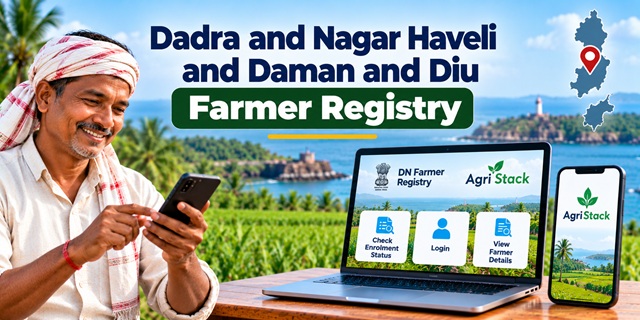
Farmers in Dadra and Nagar Haveli and Daman and Diu can access the official DN Farmer Registry portal to check enrollment status, view farmer details and manage access to their Farmer Registry account. The portal is part of AgriStack, a digital agriculture initiative designed to create a unique Farmer ID for each farmer.
If you want to register for a Farmer ID, check an existing registration or open your farmer details online, this guide explains how to use the official website in simple steps. It also covers account activation for farmers who registered through a Common Service Centre (CSC) or a registration camp.
DN Farmer Registry: Official Website and Important Links
The Union Territory has a dedicated Farmer Registry portal under the AgriStack system. Its homepage provides access to enrollment status, farmer details and account login services.
- Official DN Farmer Registry portal: Open DN Farmer Registry
- Check enrollment status: Check Farmer ID Status
- View farmer details: Open Farmer Details
- Agriculture Department: Visit the official Agriculture Department website
Use the enrollment status link if you have already submitted your registration and want to check its progress. If you want to access your recorded information, use the separate View Farmer Details page.
What Is the DN Farmer Registry?
The DN Farmer Registry is a digital registration system for farmers in Dadra and Nagar Haveli and Daman and Diu. The official portal states that the administration has started this initiative to create a unique Farmer ID for each farmer.
In simple words, a Farmer ID works as a digital identity within the agricultural registry. It helps connect a farmer's identity with relevant agricultural information and land records.
The registry forms part of AgriStack, the Government of India's digital agriculture initiative. AgriStack includes Farmer Registry, Geo-Referenced Village Maps and Crop Sown Registry. These digital systems aim to improve access to agricultural services and help departments manage farmer-related information more efficiently.
A Farmer ID is not a land ownership certificate and does not replace a land record. It also does not automatically guarantee approval for a government scheme, subsidy, loan or insurance benefit. The relevant service may have separate eligibility and verification requirements.
For a wider explanation of Farmer ID services across India, read our complete Farmer ID guide for India.
How to Register for a Farmer ID in DN
The official portal confirms that the registry aims to create a unique Farmer ID for each farmer. However, the homepage does not provide a complete public guide explaining every step of first-time enrollment.
Follow these steps to start with the official system and find the appropriate registration route.
Step 1: Open the Official Farmer Registry Website
Visit the DN Farmer Registry portal.
On the homepage, you will find options such as Check Enrollment Status, Login with CSC, View Farmer Details and the account login section.
Step 2: Check Whether You Already Have a Registration
If you have previously submitted your details through a CSC or registration camp, check your enrollment before attempting another registration.
Open the Check Enrollment Status page and follow the instructions shown on the screen.
This step helps you determine whether your earlier registration is recorded. You may already have a registry record even if you have never logged in to the website yourself.
Step 3: Confirm the Registration Process if You Are a New Applicant
If you have not registered yet, contact an authorized CSC, a registration camp or the Agriculture Department to confirm the current enrollment process for your area.
Do not assume that creating a portal account alone creates your Farmer ID. The portal specifically explains how to activate self-login for farmers whose registry was created through CSC or camp mode; that is a separate step from the original enrollment.
Step 4: Create a Portal Account if You Registered Through CSC or Camp Mode
The official website displays an important instruction for farmers whose Farmer Registry was created through a CSC or camp. These farmers must first create an account on the portal before logging in.
To do this, follow these steps:
- Open the official DN Farmer Registry portal.
- Select Create New User Account.
- Follow the instructions displayed on the screen.
- Complete the one-time account registration as instructed.
- Return to the login page and use your account to access the available services.
Think of it this way: your Farmer Registry record may already exist, but you still need to create an online account to open it yourself. This one-time setup activates self-login access.
Step 5: Log In to the Portal
The login page provides separate options for Official and Farmer users. Select the appropriate option and enter the information requested by the portal.
The page displays fields for a registered mobile number, password and CAPTCHA. After entering the details, select Log In to continue.
If you cannot remember your password, use the Forgot Password? option and follow the instructions provided by the website.
Only enter your credentials on the official portal. Never share your password or OTP with an unknown person claiming to help you register.
How to Check DN Farmer ID Enrollment Status Online
If you have already submitted your registration and want to check whether your enrollment is recorded, use the dedicated status-check page.
- Open the official DN Farmer Registry enrollment status page.
- Read the instructions displayed on the page.
- Enter the information requested by the portal.
- Complete any verification step shown on the screen.
- Submit the information and check the result displayed by the website.
The exact fields and verification steps may depend on the current portal interface. Follow the instructions displayed on the official page rather than relying on an unofficial guide that shows different fields.
If you cannot find your registration, first check that the information you entered is correct. If the problem continues, contact the CSC or registration camp where you submitted your details, or seek guidance from the Agriculture Department.
Do not assume that your registration has been rejected just because the status does not appear. Ask the responsible office to help you understand the current position of your enrollment.
How to View Farmer Details on the DN Portal
The portal provides a separate page for viewing farmer details. Use this option when you want to access information associated with your existing Farmer Registry.
- Open the official View Farmer Details page.
- Read the instructions shown on the screen.
- Enter the information requested by the portal, if prompted.
- Complete any required verification or login step.
- Review the information displayed and follow any available instructions for viewing or printing your details.
If the page asks you to log in, use your registered portal account. If you registered through a CSC or camp but have not activated self-login, complete the one-time account setup first.
After opening your details, check the information carefully. If you notice an error, contact the appropriate department or registration centre for guidance on correcting it. Avoid submitting a second registration just to resolve an issue with an existing record.
How to Use DN Farmer Registry on a Mobile Phone
You can access the official Farmer Registry website through a browser on your smartphone. A separate mobile app is not necessary to open the website and use the services displayed there.
Step 1: Open the Website on Your Phone
Open Chrome or another browser on your mobile phone and visit the official DN Farmer Registry portal.
Step 2: Choose the Service You Need
Look for the service you want to use. For example, open Check Enrollment Status to check your registration or View Farmer Details to access your recorded information.
Step 3: Enter the Requested Details
Follow the instructions displayed on your phone. Enter the requested information carefully and complete any verification step shown by the portal.
Step 4: Log In if Required
If the service requires a login, enter your registered mobile number and password. If your Farmer Registry was created through CSC or camp mode and you have not activated self-login, select Create New User Account first.
Step 5: Review Your Details
Once the website displays your information, check it carefully. If the page is difficult to use on your phone, try rotating the screen or opening the website in another browser.
These steps explain how to use the website on a mobile phone. They do not mean that a dedicated mobile app is available for this Union Territory.
Is There an Official DN Farmer Registry Mobile App?
A dedicated mobile app specifically for the Dadra and Nagar Haveli and Daman and Diu Farmer Registry could not be verified from the official sources reviewed for this article. Therefore, we are not providing an unverified app download link.
For now, farmers can access the confirmed registry services through the official website using a mobile browser. This allows them to open the enrollment status page, view farmer details and access the account options available on the portal.
Before downloading an app that claims to provide Farmer ID services for this Union Territory, check its publisher and official government references. An app for another state or an agriculture-related app with a different purpose may not support DN Farmer Registry services.
If the administration publishes a dedicated app in the future, check the official Agriculture Department website or an official app listing before installing it.
What to Do If You Cannot Log In or Find Your Farmer ID
If the portal does not open your account or show your registration, follow these basic checks before trying to register again.
- Check the website address: Use the official DN Farmer Registry portal rather than an unknown website.
- Check enrollment status: Open the dedicated status page to look for your existing registration.
- Activate your portal account: If you registered through CSC or camp mode, complete the one-time account registration required for self-login.
- Check your login details: Make sure you use the correct registered mobile number and password.
- Use password recovery: If you cannot remember your password, follow the Forgot Password instructions on the portal.
- Seek official assistance: Contact the CSC or camp where you registered, or approach the Agriculture Department.
If the portal displays an error, note the message and explain it when seeking help. Do not share your password or OTP with anyone who contacts you unexpectedly.
DN Farmer Registry Contact Details
If you need help with enrollment or portal access, you can contact the Agriculture Department of Dadra and Nagar Haveli and Daman and Diu using the details published on its official website.
- Office: Zonal Agriculture Office, Department of Agriculture
- Address: Moti-Daman, PIN 396220
- Telephone: 0260-2230856
- Official website: Agriculture Department, DNHDD
The administration's directory also lists the Secretary responsible for Agriculture, Soil Conservation and Horticulture:
- Telephone: 0260-2230979
- Email: [email protected]
- Official directory: DNHDD Administration Directory
When contacting the department, explain whether you need to complete a new enrollment, check an existing registration, activate your account or correct farmer details. This will help the office understand your issue.
Important Links for DN Farmer Registry
| Service | Official Link |
|---|---|
| DN Farmer Registry portal | Open Portal |
| Check enrollment status | Check Status |
| View farmer details | View Details |
| Agriculture Department | Official Website |
| DNHDD Administration directory | View Directory |
| Farmer ID guide for India | Read the Complete Guide |
Add new comment