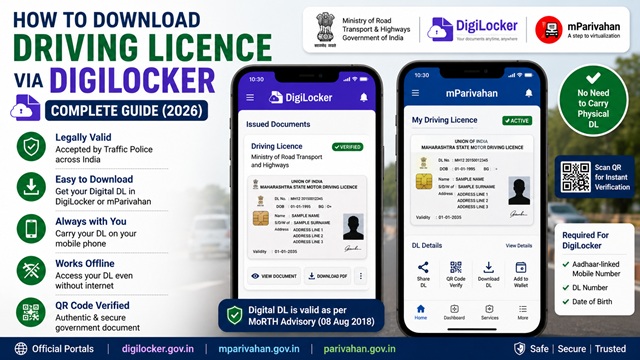
You can now download and carry your Driving Licence digitally through DigiLocker or the mParivahan app instead of carrying the physical card everywhere.
The Ministry of Road Transport and Highways (MoRTH) has officially clarified that digital Driving Licences shown through DigiLocker and mParivahan are legally valid and must be accepted by traffic police across India.
Many users remain confused about how to download the digital DL, whether Aadhaar is required, if an internet connection is needed during traffic checking, how to save the PDF, and what to do if the DL is not found online.
To make the process easier, this guide explains the complete official process to download Driving Licence through DigiLocker and mParivahan according to the latest 2026 guidelines.
In this article, you will learn how to fetch your DL from DigiLocker, download the PDF copy, verify legal validity, use mParivahan, solve common errors, and show your digital DL during traffic checks.
| Service | Details |
|---|---|
| Service Name | Driving Licence Download |
| Platforms | DigiLocker & mParivahan |
| Official Issuer | MoRTH |
| Login Required | Yes |
| Aadhaar Required | For Verified DigiLocker Account |
| Digital DL Valid? | Yes |
| Offline Access | Yes |
| PDF Download | Available |
| Traffic Police Acceptance | Yes |
Is Digital DL on DigiLocker Legally Valid?
Yes. As per the official advisory issued by MoRTH dated 08 August 2018 at morth.nic.in, traffic enforcement officers and other authorities must accept driving licences and Registration Certificates presented through the DigiLocker app or the mParivahan app as valid documents. The MoRTH advisory is based on the Information Technology Act, 2000, which gives legal standing to documents issued in electronic form by authorised government issuers.
As further confirmed on parivahan.gov.in, the issuer of driving licence data on DigiLocker is the Ministry of Road Transport and Highways and the data is pulled directly from the Sarathi Parivahan database.
What You Need Before Starting
- A smartphone with internet connection
- Your Aadhaar-linked mobile number required for creating a verified DigiLocker account
- Your Driving Licence number
- Your Date of Birth as per DL records
A verified DigiLocker account (linked with Aadhaar) is needed to access issued documents like a driving licence. A non-verified account (without Aadhaar) can only be used for uploading documents; it cannot fetch documents from government issuers. As confirmed on blog.digilocker.gov.in, documents issued through the DigiLocker system are deemed to be at par with original physical documents.
Method 1 - Download DL via DigiLocker App (Mobile)
This is the most convenient method for most users. The DigiLocker app is published by the National e-Governance Division (NeGD) under MeitY.
- Download the DigiLocker app from Google Play Store (Android) or Apple App Store (iOS). Search for DigiLocker and ensure the app is published by National e-Governance Division (NeGD).
- Open the app. If you are a new user, tap Sign Up. Enter your mobile number and set a 6-digit security PIN. Enter the OTP received on your mobile. Then enter your Aadhaar number and complete Aadhaar OTP verification to create a verified account.
- If you already have a DigiLocker account, tap Sign In, enter your mobile number and PIN, and enter the OTP received.
- On the home screen, tap the Search icon or go to Search Documents.
- Type Driving Licence in the search bar.
- From the results, select Driving Licence issued by Ministry of Road Transport and Highways.
- Enter your Driving Licence Number and Date of Birth (in DD/MM/YYYY format) and tap Get Document.
- Your driving licence is fetched from the Sarathi database and added to the Issued Documents section of your DigiLocker account.
- To view it, go to Issued Documents and tap on your Driving Licence. It opens as a digital document showing all your DL details, including name, DL number, vehicle class, validity, and issuing RTO.
Your DL is now saved in DigiLocker. You can show it on your phone screen to traffic police at any time no internet connection is needed once it is saved in the app.
Method 2 - Download DL via DigiLocker Website (Desktop or Mobile Browser)
- Go to www.digilocker.gov.in.
- Click Sign In if you have an account, or Sign Up to create a new verified account using your Aadhaar and mobile number.
- After signing in, click on the Search Documents option on the dashboard.
- Search for Driving Licence.
- Select the issuer as Ministry of Road Transport and Highways.
- Enter your Driving Licence Number and Date of Birth.
- Click Get Document.
- Your DL is fetched and added to the Issued Documents section.
- To download the PDF, go to Issued Documents, select your driving licence, click the 3 dots (more options) beside the document, and select Download.
Method 3 - Get DL via mParivahan App
The mParivahan app is the official app by MoRTH and NIC specifically for vehicle and driving licence services. It is an alternative to DigiLocker for showing your DL to the traffic police.
- Download the mParivahan app from Google Play Store or Apple App Store. The app is published by NIC under MoRTH.
- Open the app and tap RS & DL (Registration and Driving Licence) on the home screen.
- Tap DL Details.
- Enter your Driving Licence Number and Date of Birth.
- Tap Get Details. Your DL details are displayed from the Sarathi database.
- Tap Add to Profile to save the DL in your mParivahan profile for quick access anytime.
The mParivahan app also shows a QR code on your stored digital DL, which traffic officers can scan to verify the document instantly.
How to Show Your Digital DL to Traffic Police
As per the MoRTH advisory at morth.nic.in, traffic enforcement officers must accept digital DL presented via DigiLocker or mParivahan. Here is how to show it:
- Via DigiLocker app: Open DigiLocker → Issued Documents → Tap on Driving Licence → Show the screen to the officer. The officer can also scan the QR code on the document to verify it at verify.digilocker.gov.in.
- Via mParivahan app: Open mParivahan → Tap on your saved DL profile → Show the QR code screen to the officer.
You do not need an internet connection to show the document once it is saved in DigiLocker or mParivahan. Both apps work offline for displaying saved documents.
What to Do If Your DL Is Not Found on DigiLocker
If you enter your correct DL number and date of birth, but DigiLocker shows a "not found" or error message, it means your DL data has not yet been migrated to the Sarathi portal. As confirmed on parivahan.gov.in:
"Driving Licence details need to be migrated from RTO to the Sarathi portal by your concerned RTO. If the Driving Licence details are not found in DigiLocker, please consult your RTO/Department."
In this situation:
- First confirm your DL details are correct on the Parivahan status portal: parivahan.gov.in/rcdlstatus
- If DL details show correctly on Parivahan but not on DigiLocker, visit your issuing RTO and request them to migrate your DL data to the Sarathi portal
- Once migrated, retry fetching your DL on DigiLocker after a few days
- In the meantime, carry your physical DL card as usual
DigiLocker vs mParivahan: What Is the Difference?
| Feature | DigiLocker | mParivahan |
|---|---|---|
| Main Purpose | Digital document wallet for all government documents | Vehicle and Driving Licence services |
| Managed By | MeitY / NeGD | MoRTH / NIC |
| DL Storage | Yes | Yes |
| RC Storage | Yes | Yes |
| QR Verification | Available | Available |
| PDF Download | Available | Limited |
| Other Documents | Aadhaar, PAN, marksheets, etc. | Mainly transport-related services |
Both DigiLocker and mParivahan are official government platforms and both are generally accepted during traffic verification across India.
How to Share Your DL from DigiLocker
DigiLocker also lets you share your DL with others digitally.
- Go to Issued Documents in your DigiLocker app or website.
- Select your Driving Licence.
- Tap or click Share.
- Choose from the available sharing options: WhatsApp, email, or other platforms in PDF format.
This is useful when you need to submit a copy of your DL for verification purposes to any institution or employer.
Official Portals and Useful Links
- DigiLocker Official Portal - digilocker.gov.in
- How to Fetch Documents Using DigiLocker - blog.digilocker.gov.in
- Download or Share Issued Document - blog.digilocker.gov.in
- Verify DigiLocker Document - verify.digilocker.gov.in
- MoRTH Advisory - Acceptance of DL via DigiLocker/mParivahan (morth.nic.in)
- Check DL Status - parivahan.gov.in
- DigiLocker Helpdesk - support.digilocker.gov.in
DigiLocker Helpline: 1800-891-3985 (as listed on digilocker.gov.in)
Parivahan Helpdesk: 0120-2459171
Disclaimer: This article is for informational purposes only. Always refer to digilocker.gov.in and parivahan.gov.in for the latest official information.
Add new comment