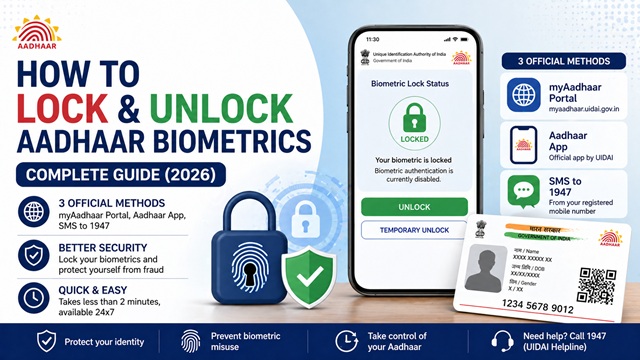
UIDAI gives every Aadhaar Card holder the option to lock and unlock their biometrics at any time. Locking your biometrics blocks anyone from using your fingerprints or iris scans for Aadhaar-based authentication. Unlocking reverses this and allows normal biometric authentication to resume. Both actions are free, take under two minutes, and are available 24x7 through three official UIDAI channels.
You can lock or unlock biometrics through the myAadhaar portal at myaadhaar.uidai.gov.in, through the new official Aadhaar app published by UIDAI on the Google Play Store, or by sending an SMS to 1947 from your registered mobile number. All three methods require a mobile number registered with your Aadhaar.
What Are Aadhaar Biometrics?
Aadhaar biometrics are the physical identity traits UIDAI captures when you enrol for Aadhaar. These include your fingerprints (all 10 fingers) and iris scans (both eyes). They are stored in encrypted form in UIDAI's central database and are never printed on your Aadhaar card.
When you visit a bank for eKYC, a telecom provider for SIM activation, a government office for benefit verification, or any other Aadhaar-enabled service, the service provider uses a biometric device to capture your fingerprint or iris and match it against UIDAI's database. If it matches, your identity is confirmed instantly without any documents.
What is Aadhaar Biometric Locking and Why Should You Use It?
Biometric locking is a security feature that lets you disable your fingerprint and iris authentication at any time. When locked, no one can authenticate using your biometrics through the Aadhaar system, including you. Any biometric authentication attempt will fail.
This protects you from a specific and growing type of fraud in India where criminals attempt to misuse someone's fingerprint data at Aadhaar-Enabled Payment System (AePS) terminals or other biometric points to withdraw money or access services fraudulently. Locking your biometrics when you are not using biometric-based services is, therefore, a recommended security habit, not just an emergency measure.
Common reasons people lock their biometrics:
- Suspicion that their fingerprint data is being misused at AePS or banking terminals.
- Aadhaar card was lost, stolen, or found in the wrong hands.
- Unrecognised entries found in Aadhaar authentication history.
- Precautionary step after a security or data breach alert.
- They do not use biometric services regularly and prefer to keep biometrics locked as a default safety measure.
Biometric Lock vs Aadhaar Number Lock - What is the Difference?
UIDAI provides two separate and distinct locking features. Many users confuse them. Understanding the difference helps you choose the right protection for your situation.
| Feature | Biometric Lock | Aadhaar Number (UID) Lock |
|---|---|---|
| What it blocks | Fingerprint and iris-based authentication only | Your actual 12-digit Aadhaar number is not to be used for any authentication |
| What continues to work | OTP-based authentication works normally | Authentication via Virtual ID (VID) works normally |
| Who it protects against | Anyone trying to use your fingerprint or iris fraudulently | Anyone trying to use your actual Aadhaar number for authentication |
| Temporary option available | Yes | Yes |
| SMS method available | Yes, via SMS to 1947 | Yes, via SMS to 1947 |
| Best used when | Suspected biometric misuse, card lost, or as a default safety practice | You want to share only the Virtual ID and prevent your Aadhaar number from being used directly |
This article covers Biometric Lock and Unlock in full. For Aadhaar Number (UID) Lock and Unlock, the process is very similar and available on the same myAadhaar portal at myaadhaar.uidai.gov.in/lock-unlock-aadhaar and via SMS to 1947.
What You Need Before You Start
| Requirement | Details |
|---|---|
| Aadhaar number or Virtual ID | Your 12-digit Aadhaar number or 16-digit Virtual ID |
| Registered mobile number | The mobile number linked to your Aadhaar. OTP is sent only to this number. |
| Active SIM with network signal | Must be able to receive SMS for OTP delivery |
| Internet connection | Required for portal and app methods. Not required for the SMS method. |
Important: If your mobile number is not registered with Aadhaar, none of the three methods will work. You must first visit an Aadhaar Enrolment Centre to register your mobile number. The charge is Rs 75. Biometric verification is done at the centre. No document is needed for mobile number registration.
All Three Official Methods at a Glance
| Method | Internet Required | Supports Lock | Supports Unlock | Best For |
|---|---|---|---|---|
| myAadhaar Portal | Yes | Yes | Yes | Any browser on desktop or mobile |
| New Aadhaar App (UIDAI) | Yes | Yes | Yes | Android smartphone users |
| SMS to 1947 | No | Yes | Yes | Users without internet, rural areas, senior citizens |
Method 1: Lock and Unlock Aadhaar Biometrics via myAadhaar Portal
The myAadhaar portal is the primary UIDAI self-service website. This method works on any browser on desktop or mobile without needing any app installed.
Steps to Lock Aadhaar Biometrics via myAadhaar Portal
- Go to the official portal: Visit myaadhaar.uidai.gov.in in any browser. Do not use any third-party website.
- Log in: Click Login. Enter your 12-digit Aadhaar number and the captcha. Click Send OTP. Enter the 6-digit OTP received on your registered mobile number and log in to your Aadhaar dashboard.
- Go to Aadhaar Services: Navigate to the Aadhaar Services section from the dashboard.
- Select Biometric Lock/ Unlock: Click the Biometric Lock/Unlock option. The page shows your current biometric status clearly.
- Click Lock Biometric: If your biometrics are currently unlocked, select the Lock Biometric option.
- Verify with OTP: Enter the OTP sent to your registered mobile number to confirm the lock action.
- Lock confirmed: A success message appears on screen. UIDAI also sends an SMS confirmation to your registered mobile number. Your biometrics are now locked and no fingerprint or iris authentication will succeed until you unlock them.
Steps to Unlock Aadhaar Biometrics via myAadhaar Portal
- Go to the official portal: Visit myaadhaar.uidai.gov.in in any browser.
- Log in: Click Login. Enter your Aadhaar number and captcha. Click Send OTP. Enter the OTP and log in.
- Go to Aadhaar Services: Navigate to the Aadhaar Services section.
- Select Biometric Lock/ Unlock: Click the Biometric Lock/Unlock option. The page shows your status as Locked.
- Click Enable Biometric or Unlock: Select the Unlock or Enable Biometric option. If you only need a one-time authentication, select Temporary Unlock instead (see the Temporary Unlock section below).
- Verify with OTP: Enter the OTP sent to your registered mobile number.
- Unlock confirmed: A success message appears. UIDAI sends an SMS confirmation. Your biometrics are now active and can be used for authentication.
What is TOTP? On both the lock and unlock pages, you can choose OTP (sent via SMS) or TOTP as the verification method. TOTP stands for Time-based One-Time Password. It is a 6-digit code that refreshes every 30 seconds and can be used without waiting for an SMS. It works even in areas with poor mobile network signal. TOTP is generated within certain UIDAI-linked authenticator apps.
Method 2: Lock and Unlock Aadhaar Biometrics via the New Official Aadhaar App
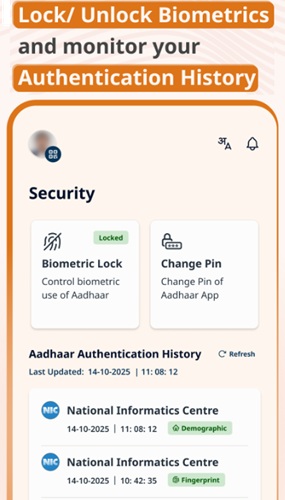
UIDAI has launched a new official Aadhaar app that is separate from the older mAadhaar app. This app directly supports biometric lock and unlock as a confirmed core feature. The app description on the official Play Store listing states: "Lock your Biometrics, and much more in seconds."
| Detail | Information |
|---|---|
| App Name | Aadhaar |
| Developer | Unique Identification Authority of India |
| Package ID (Play Store) | in.gov.uidai.pehchaan |
| Apple Store | https://apps.apple.com/in/app/aadhaar/id6744029871 |
| Last Updated | 21 April 2026 |
| Downloads | 1 Crore plus |
| Support Email | aadhaar-app.support@uidai.net.in |
| Cost | Free |
| Platform | Android (Google Play Store) |
To download, open Google Play Store or Apple App Store, search for Aadhaar, and install the app published by Unique Identification Authority of India. Verify the developer name before installing to ensure you are downloading the genuine government app.
Steps to Lock Aadhaar Biometrics via the New Aadhaar App
- Open the app: Launch the Aadhaar App after installation.
- Log in: Enter your 12-digit Aadhaar number and verify with the OTP sent to your registered mobile number.
- Go to Biometric Lock section: Navigate to the Biometric Lock or security section within the app.
- Check current status: The app shows whether your biometrics are currently locked or unlocked.
- Tap Lock Biometric: Select the Lock option.
- Verify with OTP: Enter the OTP sent to your registered mobile number.
- Lock confirmed: The app shows a success message. Your biometrics are now locked.
Steps to Unlock Aadhaar Biometrics via the New Aadhaar App
- Open the app: Launch the Aadhaar app.
- Log in: Enter your Aadhaar number and verify with OTP.
- Go to Biometric Lock section: Navigate to the Biometric Lock section.
- Tap Unlock or Enable Biometric: Select the Unlock option. For one-time authentication only, select Temporary Unlock instead.
- Verify with OTP: Enter the OTP sent to your registered mobile number.
- Unlock confirmed: The app shows a success message. Your biometrics are now active.
Note on the older mAadhaar app: The older mAadhaar app (package: in.gov.uidai.mAadhaarPlus) does not currently show the biometric lock/unlock feature in its active service menu. For biometric lock and unlock on a smartphone, use the new Aadhaar app described above.
Method 3: Lock and Unlock Aadhaar Card Biometrics via SMS to 1947
UIDAI provides an SMS-based service that lets you lock and unlock biometrics of the Aadhaar Card without any internet connection or smartphone. This is confirmed on the official UIDAI website at uidai.gov.in under Aadhaar Services on SMS. Send the SMS from your registered mobile number to 1947.
This method is especially useful for users in rural areas with limited internet access, senior citizens without smartphones, and anyone who needs to act quickly without accessing a portal or app.
SMS Format for Aadhaar Card Biometric Lock
To lock your biometrics, send this SMS to 1947 from your registered mobile number:
LOCKBIO <last 4 digits of your Aadhaar number>
Example: If your Aadhaar ends in 5678, send: LOCKBIO 5678
SMS Format for Aadhaar Card Biometric Unlock
To unlock your biometrics, send this SMS to 1947 from your registered mobile number:
UNLOCKBIO <last 4 digits of your Aadhaar number>
Example: If your Aadhaar ends in 5678, send: UNLOCKBIO 5678
What Happens After Sending the SMS
- UIDAI sends a 6-digit OTP to your registered mobile number via SMS.
- Reply with the OTP as instructed in the response SMS.
- UIDAI confirms the lock or unlock action via another SMS.
Important rules for SMS method:
- The SMS must be sent from the mobile number registered with your Aadhaar. SMS from any other number will not work.
- Standard SMS charges of your mobile operator apply.
- If multiple Aadhaar numbers are linked to the same mobile number and share the same last 4 digits, UIDAI may ask for additional identifying digits to process the correct request.
Temporary Biometric Unlock - What It Is and When to Use It
UIDAI provides a Temporary Unlock option that is safer than a permanent unlock in many situations. When you use Temporary Unlock, your Aadhaar card biometrics become active for a limited time window only. Once that window expires, your biometrics automatically lock again without any action from your side.
Temporary Unlock is the best choice when:
- You need a one-time biometric authentication at a bank, hospital, government office, or any service point and want your biometrics to lock automatically afterwards without any manual step
- You prefer keeping biometrics locked as a default and only need occasional single authentications
- You are in a situation where you might forget to re-lock manually after the authentication is done
To use Temporary Unlock, follow the same unlock steps on either the myAadhaar portal or the new Aadhaar app, but select the Temporary Unlock option when presented with the choice instead of the permanent Enable Biometric or Unlock option. Both the portal and the app offer this as a clearly visible, separate option.
How to Check Your Current Biometric Lock Status
You can check whether your biometrics are currently locked or unlocked without making any changes:
- Visit myaadhaar.uidai.gov.in in any browser.
- Log in with your Aadhaar number and OTP.
- Go to Aadhaar Services and click Biometric Lock/ Unlock.
- The page shows your current status clearly as Locked or Unlocked.
You can also check status in the new Aadhaar App by going to the Biometric Lock section after logging in.
How to Check Aadhaar Authentication History
If you suspect your biometrics were used without your knowledge, check your Aadhaar authentication history. This shows the last 50 authentication attempts made using your Aadhaar, including the date, time, type of authentication used, and whether it was successful.
- Log in to myaadhaar.uidai.gov.in.
- Go to Aadhaar Services.
- Select Authentication History.
- Review the list of recent authentication attempts.
If you see an authentication you do not recognise, lock your biometrics immediately using any of the three methods and report to UIDAI at helpline 1947 or email help@uidai.gov.in.
What Happens After Locking Biometrics of Aadhaar Card
- All fingerprint and iris-based Aadhaar authentication fails for your Aadhaar number until you unlock.
- OTP-based authentication continues to work normally. You can still use Aadhaar for eKYC and other OTP-verified services.
- You receive an SMS confirmation on your registered mobile number.
- The status on the myAadhaar portal and the new Aadhaar app immediately reflects as Locked.
- Any service provider who attempts biometric authentication on your Aadhaar will receive a failure response from UIDAI.
What Happens After Unlocking Aadhaar Card Biometrics
- Your fingerprints and iris scans are active for authentication at all UIDAI-enabled service providers.
- Banks, government offices, telecom providers, and other registered entities can use your biometrics for verification.
- You receive an SMS confirmation on your registered mobile number.
- The updated status reflects on the myAadhaar portal and the new Aadhaar app within a few minutes.
- If you used Temporary Unlock, biometrics automatically re-lock after the time window expires without any action needed from you.
Common Issues and How to Fix Them
OTP Not Received on the Portal or App
Check that your registered mobile number has a network signal and is not in DND mode for transactional SMS. Wait 60 seconds and use the Resend OTP option. If OTP still does not arrive, switch to the SMS method. Send LOCKBIO or UNLOCKBIO followed by last 4 digits of Aadhaar to 1947. This uses a different delivery path and often works when the portal OTP fails.
New Aadhaar App OTP Issue
Some users have reported OTP delivery issues on the new Aadhaar app even with an active SIM. If this happens, use the myAadhaar portal in a browser instead. Both access the same UIDAI backend. The portal method is currently more stable for OTP delivery.
Biometrics Locked But OTP-Based Services Also Failing
The biometric lock only blocks fingerprint and iris authentication. OTP-based Aadhaar services should continue to work normally when biometrics are locked. If OTP services are also failing, your Aadhaar number may separately be locked. Check the Aadhaar Number Lock status on the myAadhaar portal and unlock it if needed.
Unlock Processed But Biometric Authentication Still Failing at Service Point
Wait 10 to 15 minutes after unlocking. The updated status takes time to sync across all UIDAI-connected service provider terminals. If the problem continues after 15 minutes, call the UIDAI helpline 1947.
You Do Not Know Which Mobile Number Is Registered
Log in to myaadhaar.uidai.gov.in. After login, your registered mobile number appears in masked format in your profile (for example, XXXXXX7890). If you cannot log in because the number is deactivated or lost, visit any Aadhaar Enrolment Centre to update it.
Captcha Not Loading on the myAadhaar Portal
Refresh the page or try a different browser. Chrome and Firefox work best with the myAadhaar portal. Clear the browser cache and cookies if the captcha still does not appear.
Things to Keep in Mind
- There is no limit on how many times you can lock and unlock Aadhaar biometrics. Both actions are free of charge.
- UIDAI recommends keeping biometrics locked when you are not actively using biometric-based services. Lock it after every use and unlock only when needed.
- Use Temporary Unlock for one-time authentications so your biometrics re-lock automatically without any extra step from your side.
- Check your Aadhaar authentication history regularly to stay aware of how and where your Aadhaar is being used.
- Always use only official UIDAI platforms: myaadhaar.uidai.gov.in for the portal and the app published by Unique Identification Authority of India on the Play Store. Never use third-party apps or websites for biometric lock/unlock.
- UIDAI never calls and asks for your OTP. If anyone calls claiming to be UIDAI and asks for your OTP, it is a fraudulent attempt. Do not share the OTP.
- Use Virtual ID (VID) wherever possible instead of sharing your actual 12-digit Aadhaar number with third parties. Generate VID from the myAadhaar portal or the new Aadhaar app.
- Locking biometrics does not lock your Aadhaar number. These are two separate protections. For maximum security, use both.
Conclusion
Locking and unlocking your Aadhaar biometrics is one of the simplest and most effective ways to protect yourself from identity fraud. The process takes under two minutes, is completely free, and is available around the clock through three official UIDAI channels: the myAadhaar portal, the new Aadhaar app, and SMS to 1947.
Make it a habit to keep your biometrics locked when you are not using biometric-based services. Unlock only when needed, use Temporary Unlock whenever a single authentication is all you need, and re-lock immediately after. Check your authentication history periodically to stay aware of how your Aadhaar is being used.
For any issue that cannot be resolved online, call the UIDAI toll-free helpline 1947 or email help@uidai.gov.in.
Official Sources: uidai.gov.in | myaadhaar.uidai.gov.in | Official Aadhaar App on Google Play Store (in.gov.uidai.pehchaan) | Unique Identification Authority of India, Ministry of Electronics and Information Technology, Government of India.
Add new comment