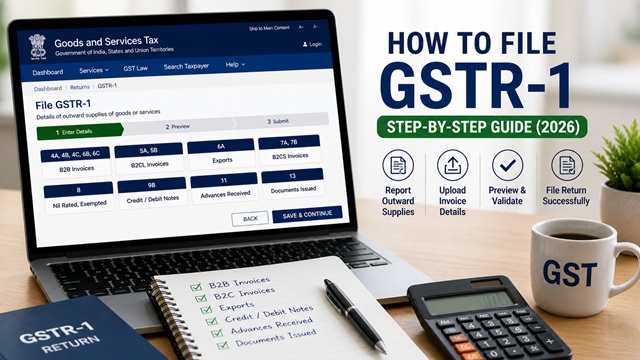
Form GSTR-1 is the statement of outward supplies filed by all normal and casual GST-registered taxpayers. In this return, you report every sale invoice, credit note, debit note, and advance receipt for the tax period. It is the primary return from which your buyers get their auto-populated ITC in GSTR-2B.
Filing GSTR-1 accurately and on time is critical, errors or delays directly impact your buyers' ability to claim Input Tax Credit. This guide covers the complete filing process step by step, sourced directly from the official GST portal manuals at tutorial.gst.gov.in.
What is GSTR-1?
As per the official GSTR-1 FAQ at tutorial.gst.gov.in, Form GSTR-1 is a monthly or quarterly statement of outward supplies filed by all normal and casual registered taxpayers. It contains the details of all goods and services sold or supplied during the tax period.
Key facts about GSTR-1:
- It reports invoice-level details of all outward supplies made during the period.
- Data filed in GSTR-1 auto-populates in your buyers' GSTR-2A and GSTR-2B, enabling them to claim ITC.
- Data from GSTR-1 is also auto-drafted into your own GSTR-3B in Tables 3.1 and 3.2.
- Invoices can be added, edited, or deleted any number of times until GSTR-1 is filed.
- Once filed, corrections can only be made in a subsequent GSTR-1 or through GSTR-1A.
- Invoice number must be a maximum of 16 characters (alphanumeric, dash, slash allowed).
- Duplicate invoice numbers for the same GSTIN in the same financial year are not accepted.
Who Must File GSTR-1?
Every registered taxable person must file GSTR-1, except:
- Input Service Distributors (ISD).
- Composition taxpayers.
- Persons liable to deduct TDS under Section 51.
- Persons liable to collect TCS under Section 52.
Due Dates for GSTR-1
| Filer Type | Frequency | Due Date |
|---|---|---|
| Monthly filers (turnover above Rs. 5 crore) | Monthly | 11th of the following month |
| Quarterly filers under QRMP (turnover up to Rs. 5 crore) | Quarterly | 13th of the month following the quarter |
Sequential filing rule: You must file GSTR-3B for the previous period before filing GSTR-1 for the current period. For example, to file GSTR-1 for October, you must first file GSTR-3B for September.
Monthly vs Quarterly Filing - QRMP Scheme
You can opt for quarterly filing of GSTR-1 under the QRMP (Quarterly Return Monthly Payment) scheme if:
- Your turnover during the preceding financial year was up to Rs. 5 crore, or
- You are newly registered and expect aggregate turnover up to Rs. 5 crore
Under QRMP, you file GSTR-1 quarterly but pay tax monthly through a Fixed Sum Method (FSM) challan or self-assessed payment in PMT-06.
As per the official GSTR-1 FAQ (older version), the threshold was Rs. 1.5 crore, but this was revised to Rs. 5 crore. The current threshold is Rs. 5 crore.
For QRMP quarterly filers:
- M1 and M2 of each quarter: Filing GSTR-1 is NOT available. Instead, you can optionally use the Invoice Furnishing Facility (IFF) to upload B2B invoices so your buyers can get ITC on time.
- M3 of each quarter: Mandatory GSTR-1 filing for the full quarter.
Tables in GSTR-1 - Overview
| Table No. | What it Covers |
|---|---|
| Table 4A, 4B, 4C, 6B, 6C | B2B invoices - taxable outward supplies to registered persons |
| Table 5A, 5B | B2CL - Large B2C (unregistered) inter-state invoices above Rs. 1 lakh |
| Table 6A | Exports (with or without payment of tax) |
| Table 7A, 7B | B2CS - B2C small invoices (intra-state and small inter-state supplies to unregistered) |
| Table 8 | Nil-rated, exempt, and non-GST outward supplies |
| Table 9A | Amendments to B2B invoices of earlier tax periods |
| Table 9B | Credit and Debit Notes (registered recipients) |
| Table 9C | Amendments to credit/debit notes of earlier periods (registered) |
| Table 10 | Amendments to B2CL invoices of earlier periods |
| Table 11 | Advances received and tax liability thereon / adjustment of advances |
| Table 12 | HSN-wise summary of outward supplies |
| Table 13 | Documents issued (invoices, credit notes, debit notes, revised invoices) |
| Table 14 | Supplies through e-commerce operators - liable to pay under Section 9(5) |
| Table 14A | Amendments to supplies reported in Table 14 |
| Table 15 | Supplies made by e-commerce operators liable to pay under Section 9(5) |
| Table 15A | Amendments to supplies reported in Table 15 |
Step-by-Step: How to File GSTR-1 Online
- Go to www.gst.gov.in and log in with your GST credentials.
- Click Services > Returns > Returns Dashboard.
- Select the Financial Year, Quarter, and Period (Month). Click SEARCH.
- In the GSTR-1 tile, click PREPARE ONLINE (for manual entry) or PREPARE OFFLINE (to upload a JSON file generated from the offline tool).
- The GSTR-1 - Details of Outward Supplies page is displayed with all table tiles.
- Click each tile to add invoice details for that category.
Table 4 - B2B Invoices (Supplies to Registered Persons)
This is the most important table for businesses. Enter details of all invoices issued to GST-registered buyers.
- Click the 4A, 4B, 4C, 6B, 6C - B2B Invoices tile.
- Click ADD INVOICE.
- Enter the Receiver GSTIN. The portal validates it and auto-fills the receiver's name.
- Enter the Invoice Number (max 16 characters, alphanumeric).
- Select the Invoice Date.
- Enter the Invoice Value (total invoice value including taxes).
- Select the Place of Supply (POS). If POS is the same as the supplier's state, CGST + SGST applies. If different: IGST applies.
- Select checkboxes if applicable: Reverse Charge, Deemed Export, SEZ Supply with or without payment.
- Enter the Taxable Value against each applicable tax rate. Tax amounts are auto-calculated but can be edited.
- Enter Cess if applicable (Cess is not auto-calculated).
- Click SAVE. Invoice status shows as Processed.
- Click BACK to return to the GSTR-1 page and add more invoices.
Notes:
- If the receiver GSTIN is an ISD GSTIN, certain supply type checkboxes are disabled
- Intra-state supplies attracting IGST are enabled only when reverse charge is selected
- You can enter goods and services in the same invoice
- Invoices can be edited or deleted any number of times until GSTR-1 is filed
Table 5 - B2CL Invoices (Large B2C Inter-State Supplies)
Enter invoices for inter-state supplies made to unregistered buyers where the invoice value exceeds Rs. 1 lakh.
For each invoice, enter: Invoice number, date, invoice value, place of supply (state), taxable value at each rate, IGST amount, and Cess.
Note: From August 2024, the threshold for reporting in Table 7B (B2CS breakup) is invoices above Rs. 2.5 lakh. Amounts from Rs. 1 lakh to Rs. 2.5 lakh are reported in the B2CL breakup in Table 5.
Table 7 - B2CS (Small B2C Supplies)
Enter consolidated (rate-wise, state-wise) details of:
- All intra-state supplies to unregistered buyers.
- Inter-state supplies to unregistered buyers where the invoice value is Rs. 1 lakh or less.
This is a summary table; no individual invoice details are needed. Enter total taxable value and tax amounts grouped by place of supply and tax rate.
Table 9B - Credit and Debit Notes (Registered Recipients)
Enter credit notes and debit notes issued to GST-registered buyers.
- Click the 9B - Credit/Debit Notes (Registered) tile.
- Click ADD DETAILS.
- Enter the recipient GSTIN, note type (Credit or Debit), note number (max 16 characters), note date, and original invoice details.
- Enter taxable value and tax amounts.
- Click SAVE.
New feature (as per GSTR-1 FAQ): You can now report a single credit or debit note issued against multiple original invoices in one go after the delinking of credit/debit notes from original invoices.
Table 8 - Nil Rated, Exempt and Non-GST Supplies
Enter the total value of supplies in three categories:
- Nil Rated Supplies - supplies chargeable at 0% GST
- Exempt Supplies - supplies exempt from GST (other than nil-rated or non-GST)
- Non-GST Supplies - supplies that are outside the scope of GST (e.g., alcohol for human consumption, petroleum products)
Enter values separately for inter-state and intra-state supplies in each category. Click SAVE.
Table 11 - Tax Liability on Advances
If you have received advance payments for goods or services on which GST is applicable, report the advance amount and corresponding tax liability here. When the invoice is later raised against the advance, report the adjustment in Table 11(2) to avoid double-counting.
Table 12 - HSN-wise Summary of Outward Supplies
As per the official GSTR-1 FAQ at tutorial.gst.gov.in:
- From May 2021 onwards: HSN-wise summary must include quantitative details along with rate and value
- You can import data from the e-Way Bill (EWB) system by clicking the IMPORT EWB DATA button
- You can also manually enter HSN/SAC codes and corresponding details
For each HSN/SAC code, enter: description, unit of measurement (UQC), total quantity, total value, taxable value, and tax amounts (IGST, CGST, SGST, Cess).
How to Generate GSTR-1 Summary
After adding invoices in any or all tables, you must generate a summary before filing.
- Scroll to the bottom of the GSTR-1 page.
- Click the GENERATE GSTR-1 SUMMARY button.
- The system starts generating the summary. A message asks you to check after some time.
- The summary is also generated automatically every 30 minutes by the GST portal.
- Note: The GENERATE GSTR-1 SUMMARY button can be clicked again only after an interval of 10 minutes from the last generation. Clicking before 10 minutes shows an error.
Once generated, the summary shows totals for each table tile on the GSTR-1 landing page.
How to File GSTR-1
- After generating the summary, scroll down on the GSTR-1 page.
- Click the SUBMIT button. A confirmation pop-up is displayed. Click OK. The GSTR-1 status changes to Submitted.
- A Declaration page is displayed. Select the Declaration checkbox.
- Select the Authorised Signatory from the dropdown.
- Sign and file using:
- FILE WITH DSC: Click Proceed, select certificate, click SIGN. Mandatory for companies and LLPs.
- FILE WITH EVC: Enter OTP sent to the registered email and mobile of the Authorised Signatory. Click VERIFY.
- A success message is displayed. An ARN (Application Reference Number) is generated.
- Confirmation is sent via email and SMS to the Authorised Signatory.
Once filed, your GSTR-1 data is immediately made available to your buyers in their GSTR-2A and GSTR-2B.
How to File Nil GSTR-1
A Nil GSTR-1 can be filed if you have made no outward supplies during the tax period.
Important prerequisite: It is mandatory to file GSTR-3B and GSTR-1 of the immediate previous period before filing Nil GSTR-1. Example: to file Nil GSTR-1 for September, GSTR-3B for August and GSTR-1 for August must both be filed first.
- Go to Services > Returns > Returns Dashboard.
- Select financial year and period. Click SEARCH.
- Click PREPARE ONLINE in the GSTR-1 tile.
- Select the File Nil GSTR-1 checkbox at the top of the GSTR-1 page.
- If there are any saved or auto-populated records, you must delete them first. Click the RESET button or delete records from individual tiles. Once deleted and the summary is regenerated, select the Nil checkbox again.
- Click FILE STATEMENT.
- Select the Declaration checkbox, select the Authorised Signatory, file with DSC or EVC.
How to File Nil GSTR-1 via SMS
As per the official tutorial.gst.gov.in nil return FAQ, Nil GSTR-1 can also be filed via SMS.
Steps:
- Send SMS to 14409 in the format: NIL R1 [GSTIN] [Tax Period as MMYYYY]
Example: NIL R1 27ABCDE1234F1Z5 042026 - You will receive a 6-digit Verification Code valid for 30 minutes.
- Send another SMS to 14409: CNF R1 [Verification Code]
Example: CNF R1 654321 - Filing confirmation received via SMS and email. ARN generated.
The return type for GSTR-1 via SMS is R1 (vs 3B for GSTR-3B). Same rules apply: code valid 30 minutes, one-time use, not case sensitive, 3 wrong attempts block SMS filing for 24 hours.
GSTR-1A - Amending GSTR-1 After Filing
As per the official GSTR-1A FAQ at tutorial.gst.gov.in, Form GSTR-1A is an optional amendment form introduced to allow taxpayers to correct or add records in their GSTR-1 after filing, but before filing GSTR-3B for the same period.
Key facts about GSTR-1A:
- GSTR-1A is available from the later of: due date of GSTR-1 (11th for monthly, 13th for quarterly) or the actual date of filing GSTR-1.
- It can be filed until GSTR-3B for the same period is filed, once GSTR-3B is filed, GSTR-1A is closed
- There is no due date for GSTR-1A.
- GSTR-1A is optional. If you do not file it, you can still amend records in subsequent GSTR-1 filings.
- GSTR-1A allows you to: add missing records, amend incorrect records filed in the same period's GSTR-1.
- GSTR-1A cannot amend records from previous GSTR-1 filings, only the current period.
- GSTR-1A can only be filed through online mode or through a GSP (GST Suvidha Provider).
- Nil GSTR-1A filing is not available.
- GSTIN of the recipient cannot be amended through GSTR-1A, that can only be done in a subsequent GSTR-1.
- Once amended in GSTR-1A, correct values are auto-populated in your GSTR-3B.
IFF - Invoice Furnishing Facility for Quarterly Filers
The Invoice Furnishing Facility (IFF) is available to quarterly filers under QRMP for the first two months (M1 and M2) of each quarter. As per the official IFF manual at tutorial.gst.gov.in:
- IFF is optional. It is not mandatory for M1 and M2.
- It allows quarterly filers to upload B2B invoices for M1 and M2 so that their buyers can get ITC in GSTR-2B every month instead of waiting until the end of the quarter.
- IFF covers only B2B invoices, credit/debit notes (registered), and amendments, not B2C or exports.
- The due date for filing IFF for M1 and M2 is the 13th of the following month.
- For M3, the full GSTR-1 must be filed covering all three months of the quarter.
Move/ Reset functionality: If you saved records in M1 IFF but did not submit them by the due date, those records can be moved to M2 IFF or reset. On clicking PREPARE ONLINE in M2 IFF or M3 GSTR-1, a pop-up asks whether to move or reset the saved M1 records.
GST Helpdesk: 1800-103-4786 (as listed on gst.gov.in)
Disclaimer: This article is for informational purposes only. All procedures are subject to change by GSTN, CBIC, and the Government of India. Always verify the latest process at gst.gov.in.
Add new comment