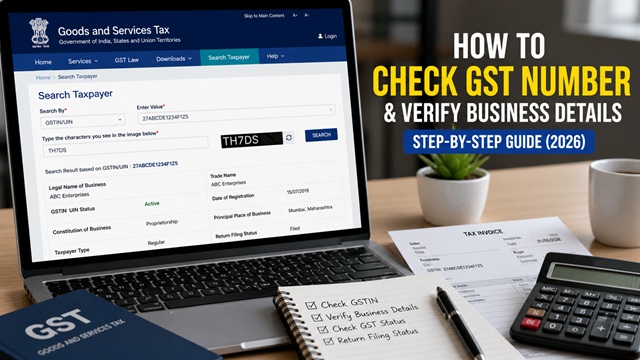
Verifying a GST number before making any business payment or entering a purchase transaction is important. It confirms that the business is genuinely registered under GST, that the GSTIN on the invoice is valid and active, and that you are dealing with a legitimate supplier.
The only official and free tool to verify any GST number in India is the Search Taxpayer feature on the official GST portal at www.gst.gov.in. No third-party site, app, or tool is needed. No login or registration is required for basic verification.
This guide covers every official method to check a GST number and verify business details, exactly as described in the official GST portal user manual at tutorial.gst.gov.in.
What is a GSTIN and What Does It Look Like?
GSTIN stands for Goods and Services Tax Identification Number. Every business registered under GST in India receives a unique 15-digit alphanumeric GSTIN. It is the number that appears on all GST invoices, bills, and official documents.
Structure of a GSTIN (15 digits):
| Position | Characters | What It Represents |
|---|---|---|
| 1 - 2 | 2 digits (numeric) | State Code. Example: 07 = Delhi, 27 = Maharashtra, 29 = Karnataka, 33 = Tamil Nadu |
| 3 - 12 | 10 characters | PAN (Permanent Account Number) of the business or proprietor |
| 13 | 1 character | Entity number — how many GST registrations the same PAN has in the same state (1, 2, 3... then A, B, C...) |
| 14 | 1 character | Z for regular taxpayers · D for TDS deductors · C for TCS collectors |
| 15 | 1 character | Check code — used for error detection |
Example GSTIN: 07ABCDE1234F1Z5
- 07 = Delhi
- ABCDE1234F = PAN of the business
- 1 = First registration in Delhi under this PAN
- Z = Regular taxpayer
- 5 = Check code
A UIN (Unique Identification Number) is issued to UN Bodies, Embassies, and other notified persons instead of a GSTIN. The Search Taxpayer feature on the GST portal can verify both GSTIN and UIN.
Official Portal to Verify GST Number
There is only one official government portal for GST number verification in India:
Official GST Portal: www.gst.gov.in
Direct link to Search Taxpayer: services.gst.gov.in/services/searchtp
This portal is managed by the Goods and Services Tax Network (GSTN) under the National Informatics Centre (NIC). It is free to use. No registration, no login, no payment is needed for basic verification.
Important: Do not rely on third-party websites or apps to verify a GSTIN. Only the official GST portal provides real-time, accurate, and authoritative data directly from the government database.
Search Options Available on the GST Portal
As per the official GST portal, the Search Taxpayer section offers three search methods:
| Search Option | What You Need | Direct URL | Login Required? |
|---|---|---|---|
| Search by GSTIN / UIN | 15-digit GSTIN or UIN | services.gst.gov.in/services/searchtp | No (basic) · Yes (full details) |
| Search by PAN | 10-character PAN of business | services.gst.gov.in/services/searchtpbypan | No |
| Search Composition Taxpayer | State and legal name or GSTIN | services.gst.gov.in/services/listoftaxpayer | No |
Method 1 - Verify GST Number Without Login (Pre-Login)
This is the quickest method. Anyone can use it without creating an account on the GST portal. As per the official user manual at tutorial.gst.gov.in, the steps are:
- Go to www.gst.gov.in.
- On the homepage, click Search Taxpayer from the top navigation menu.
- Select Search by GSTIN/UIN.
- Enter the 15-digit GSTIN or UIN of the taxpayer in the search field.
- Enter the captcha code displayed on the screen.
- Click the SEARCH button.
- The taxpayer details will be displayed on screen.
Once results appear, you can also:
- Click SHOW FILING TABLE to check return filing details. Select the financial year from the dropdown and click SEARCH to see which returns have been filed.
- Click Show Return Filing Frequency to see whether the taxpayer files monthly or quarterly.
- Click Filing Frequency of Previous FY to check the filing pattern of the previous financial year.
Note: If a taxpayer type is Cancelled, Not Registered, or Composition, the Show Return Filing Frequency button will show an error message.
Method 2 - Verify GST Number After Login (Post-Login - More Details)
If you are a GST-registered taxpayer yourself and log in to the GST portal, you can see additional details about any other taxpayer that are not visible in the pre-login search.
- Go to www.gst.gov.in and log in with your own valid GST credentials (username and password).
- Click Search Taxpayer from the navigation menu.
- Enter the GSTIN or UIN of the business you want to verify.
- Click SEARCH. The details are displayed along with additional fields visible only after login.
- Click Place of Business tab to view business location details.
- Click SHOW FILING TABLE, select the financial year, and click SEARCH to view return filing status.
- Click E-WAY BILL HISTORY to view e-way bill activity of the taxpayer.
- Click Liability Paid Percentage to view the percentage of liability the taxpayer has paid in cash vs ITC.
- Click Show Return Filing Frequency to check monthly or quarterly filing pattern.
Method 3 - Search GST Number by PAN
If you know the PAN of a business but not its GSTIN, you can find all GSTINs registered under that PAN across India using this method.
- Go to services.gst.gov.in/services/searchtpbypan.
- Enter the 10-character PAN of the business.
- Enter the captcha code.
- Click SEARCH.
- All GSTINs registered under that PAN across all states will be listed.
This is useful when a supplier has multiple business registrations across different states under the same PAN and you want to confirm the correct GSTIN for your state.
Method 4 - Search Composition Taxpayer
Composition taxpayers are small businesses registered under the GST Composition Scheme. They do not charge GST on invoices. If you receive an invoice from a vendor claiming to be under the Composition Scheme, verify their status here.
- Go to services.gst.gov.in/services/listoftaxpayer.
- Select the State from the dropdown.
- Enter the legal name or GSTIN of the taxpayer.
- Click SEARCH.
- The composition taxpayer details will be listed.
Important: A composition taxpayer cannot issue a tax invoice or collect GST from buyers. If a supplier under composition scheme charges you GST on an invoice, that is a violation and you cannot claim ITC on that invoice.
What Details You Can See Without Login
As confirmed in the official GST tutorial at tutorial.gst.gov.in, the following details are publicly visible to anyone without logging in:
- GSTIN or UIN
- Legal Name of Business
- Trade Name (if different from legal name)
- Effective Date of Registration
- Constitution of Business (Proprietorship, Partnership, Private Limited Company, LLP, etc.)
- GSTIN or UIN Status (Active / Cancelled / Suspended)
- Taxpayer Type (Regular, Composition, SEZ Unit, etc.)
- Administrative Office details
- Other Office details
- Principal Place of Business (state-level, not full address)
- Effective Date of Cancellation (if cancelled)
- Nature of Business Activities
- Goods and Services dealt in (HSN/SAC codes)
- Details of Returns Filed (financial year-wise, using SHOW FILING TABLE)
What is NOT shown publicly: The full address, owner's personal contact details, bank account details, turnover figures, and PAN are not publicly displayed for privacy reasons.
What Additional Details You Can See After Login
As per the official user manual at tutorial.gst.gov.in, logging in to your own GST account reveals the following additional details about any taxpayer you search:
- Name(s) of the Proprietor, Director(s), or Promoter(s)
- Contact details of Principal Place of Business and Additional Place of Business
- E-way Bill History
- GST Compliance Rating (a score from 0 to 10 assigned by the GST department based on timely return filing, tax payment, and other compliance factors)
- Annual Aggregate Turnover (AATO) slab based on Income Tax return data from CBDT database
- Percentage of Tax Payment in Cash (vs ITC credit)
These additional details help businesses make more informed decisions about the suppliers they work with, especially for large transactions.
Understanding GSTIN Status: Active, Cancelled, Suspended
When you search a GSTIN on the portal, the status field is the most important thing to check. Here is what each status means:
| Status | What It Means | Can They Issue GST Invoice? | Can You Claim ITC? |
|---|---|---|---|
| Active | Registration is valid and operational. Business is currently registered under GST. | Yes | Yes (subject to other ITC conditions) |
| Cancelled | Registration has been terminated either voluntarily by the taxpayer or by the tax officer. GSTIN is no longer valid. | No | No - ITC on invoices from a cancelled GSTIN is not admissible |
| Suspended | Registration is temporarily inactive, usually during cancellation proceedings initiated by a tax officer or due to non-compliance. Also called auto-suspended. | No | No - ITC risk during suspended period |
| Provisional | Temporary registration issued to a new applicant before final approval. Valid for a limited period. | Limited use only | Risky - verify before proceeding |
Key rule: Never accept a GST invoice from a supplier whose GSTIN status is Cancelled or Suspended. You will not be able to claim Input Tax Credit on such invoices, and it could result in GST notices from your tax officer.
Auto-Suspended GSTIN: As per the GST portal user manual, if a GSTIN is auto-suspended, the status and the effective date of suspension are both displayed in the search results. This is a separate status from a regular suspended GSTIN.
SEZ taxpayers: For SEZ Unit or SEZ Developer taxpayers, the search results additionally show the Period of Validity for the Letter of Approval (LoA) or Letter of Permission (LoP). This information is not shown for other types of taxpayers.
How to Check GST Return Filing Status of a Business
The GST portal allows you to check whether a registered business is regularly filing its GST returns. This is important before you enter into a large transaction or ongoing vendor relationship, because your ITC eligibility depends on your supplier filing their GSTR-1.
Steps to check return filing status:
- Search the GSTIN on the portal using Method 1 above.
- Once the taxpayer details are displayed, click the SHOW FILING TABLE button.
- Select the Financial Year from the dropdown list.
- Click SEARCH.
- The return filing details for the selected year are displayed — showing which returns (GSTR-1, GSTR-3B, etc.) have been filed and which are pending.
- Click Show Return Filing Frequency to check whether the taxpayer files monthly or quarterly.
- Click Filing Frequency of Previous FY to check the previous year's pattern.
What the filing table shows:
- Return type (GSTR-1, GSTR-3B, etc.)
- Tax period
- Filing status: Filed or Not Filed
- Date of filing (if filed)
Why this matters for you as a buyer: From January 2026, the GST portal blocks your return filing if your claimed ITC exceeds what is available in your GSTR-2B. If your supplier has not filed their GSTR-1, their invoice will not appear in your GSTR-2B and you cannot claim ITC that month. Checking a supplier's filing history before onboarding them helps avoid this problem.
How to Identify a Fake or Invalid GST Number
A GSTIN can be fake or incorrectly quoted on invoices. Here is how to identify one using the official portal and basic logic:
Step 1 - Check the format
A valid GSTIN is always exactly 15 characters. It starts with a 2-digit state code (01 to 38). The next 10 characters must match a valid PAN format (5 letters, 4 digits, 1 letter). If any of these are wrong, the GSTIN is invalid.
Step 2 - Verify on the official portal
Go to services.gst.gov.in/services/searchtp and search the GSTIN. If the portal shows "GSTIN not found" or "Invalid GSTIN", the number does not exist in the government database. Do not proceed with the transaction.
Step 3 - Cross-check the business name
The legal name shown on the portal must match the name on the invoice. A mismatch between the invoice name and the portal name is a red flag. Trade names can differ, but the legal name must be consistent.
Step 4 - Check the state code matches the business address
The first two digits of the GSTIN represent the state where the business is registered. If the GSTIN starts with 27 (Maharashtra) but the invoice address shows a Delhi office, verify whether the supplier also has a Delhi GSTIN (starting with 07). A business with offices in multiple states must have separate GSTIN for each state.
Step 5 - Check the status
Even if the GSTIN exists, confirm the status is Active. A cancelled or suspended GSTIN on an invoice is as invalid as a fake one for ITC purposes.
Step 6 - Check return filing history
A business that has not filed any returns in the last several months despite being active is a risk indicator. Use the SHOW FILING TABLE option to check.
Why You Should Verify GST Number Before Payment
- To confirm the business is legally registered
- To avoid fake or fraudulent invoices
- To ensure Input Tax Credit (ITC) eligibility
- To check if the supplier is filing returns regularly
Add new comment