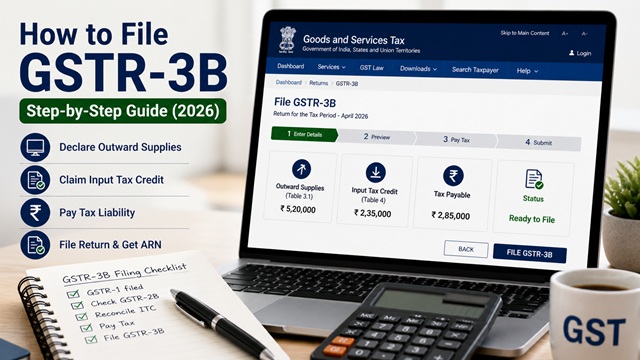
Form GSTR-3B is a monthly summary return filed by all normal and casual GST-registered taxpayers on the official GST portal. In this return, you declare your total GST liability on outward supplies, claim Input Tax Credit on inward supplies, and pay the net tax liability. It is one of the most important compliance requirements under GST.
Filing GSTR-3B is mandatory for every tax period, even if there is no business activity. It cannot be revised once filed. This guide covers the complete filing process step by step, sourced directly from the official GST portal manual at tutorial.gst.gov.in.
What is GSTR-3B?
As per the official GSTR-3B FAQ at tutorial.gst.gov.in, Form GSTR-3B is a simplified summary return. Its purpose is for taxpayers to declare their summary GST liabilities for a tax period and discharge those liabilities.
Key facts about GSTR-3B:
- It is a summary return, you report total figures, not individual invoice details.
- Invoice-level details are reported separately in GSTR-1.
- Data from your GSTR-1/1A (outward supplies) and GSTR-2B (ITC) is auto-populated in GSTR-3B, though you can edit the values.
- GSTR-3B cannot be revised or amended once filed.
- It must be filed every tax period even if there is no business activity (Nil return).
Who Must File GSTR-3B?
As per the official FAQ, the following must file GSTR-3B:
- All Normal Taxpayers.
- All Casual Taxable Persons.
- SEZ Units and SEZ Developers.
The following are not required to file GSTR-3B:
- Composition taxpayers (they file CMP-08 and GSTR-4).
- Input Service Distributors (ISD).
- TDS deductors under Section 51.
- TCS collectors under Section 52.
- Non-resident taxable persons.
Due Dates for Filing GSTR-3B
| Taxpayer Type | Filing Frequency | Due Date |
|---|---|---|
| Monthly filers (all turnover above Rs. 5 crore) | Monthly | 20th of the following month |
| Quarterly filers - QRMP Scheme (Category 1 States) | Quarterly | 22nd of the month following the quarter |
| Quarterly filers - QRMP Scheme (Category 2 States) | Quarterly | 24th of the month following the quarter |
Note for quarterly filers: Under the QRMP scheme, GSTR-3B is filed only for the last month of each quarter (M3: June, September, December, March). The GSTR-3B tile will not appear in the Returns Dashboard for M1 or M2 months of a quarter.
A taxpayer may file Nil GSTR-3B anytime on or after the 1st of the subsequent month for which the return is being filed. Example: for April, a nil return can be filed only on or after 1st May.
Sequential Filing Rule - Important
As per the official GSTR-3B manual at tutorial.gst.gov.in, sequential filing is mandatory:
- If you need to file GSTR-3B for September, you must first file GSTR-3B for August.
- If you need to file GSTR-1 for October, you must first file GSTR-3B for September.
- If entries in the RCM Liability / ITC Statement are not posted for the previous return period, you will not be allowed to file the next GSTR-3B. An error message and a locked SAVE button will be shown on the dashboard.
This means all pending returns must be filed in order before filing the current period.
What to Prepare Before Filing
Before you start filing GSTR-3B, keep the following ready:
- It is advisable to file GSTR-1 before GSTR-3B so that outward supply data auto-populates in Tables 3.1 and 3.2 of GSTR-3B.
- Check your GSTR-2B for the period to know how much ITC is available (Services > Returns > Returns Dashboard > GSTR-2B tile).
- Reconcile your GSTR-2B with your purchase register.
- Calculate any ITC reversals due for the period (non-payment to supplier beyond 180 days, exempt supply use, etc.).
- Check if there are any pending interest or late fees from previous periods.
- Ensure your Electronic Cash Ledger has sufficient balance to pay any net tax liability (Services > Ledgers > Electronic Cash Ledger).
Before filing GSTR-3B, ensure that your GST registration is active and your business details are correctly updated on the GST portal. If you have not yet registered or need help, refer to our GST Registration Online Guide.
Step-by-Step: How to File GSTR-3B Online
- Go to www.gst.gov.in and log in with your GST credentials.
- Click Services > Returns > Returns Dashboard.
- Select the Financial Year, Quarter, and Period (Month) for which you want to file. Click SEARCH.
- The Returns Dashboard is displayed with tiles for each return type. In the GSTR-3B tile, click the PREPARE ONLINE button. The due date for filing is displayed on this page.
- A questionnaire is displayed. Answer the questions to show the relevant sections of GSTR-3B applicable to you. Click NEXT.
Note: If GSTR-1/1A or GSTR-2B data has already been auto-populated, only the first question (whether to file Nil return) will appear. Based on your answers, relevant tables will be shown.
- The System Generated GSTR-3B summary page is displayed. Click CLOSE to proceed to the filing page.
- Click the SYSTEM GENERATED GSTR-3B button to download and review system-computed details from your GSTR-1/1A and GSTR-2B. Review this carefully before entering or editing values.
Important: Auto-populated values are for assistance only. You must verify their correctness and can edit them. If you edit a value downward in Tables 3.1(a,b,c,e), 3.1(d), 3.2 or upward in Table 4A, the field will be highlighted in red with a warning. Hover over the field to see both the system-computed and your entered value.
Table 3.1 - Tax on Outward and Reverse Charge Inward Supplies
Click the 3.1 Tax on outward and reverse charge inward supplies tile. A pop-up will appear, click OK.
| Row | What to Enter | Auto-populated From |
|---|---|---|
| 3.1(a) Outward taxable supplies (other than zero-rated, nil-rated, and exempt) | Total taxable value and IGST, CGST, SGST/UTGST, Cess amounts | GSTR-1/1A |
| 3.1(b) Outward taxable supplies (zero rated) | Taxable value and tax for zero-rated exports | GSTR-1/1A |
| 3.1(c) Other outward supplies (nil rated, exempt) | Value of nil-rated and exempt outward supplies | GSTR-1/1A |
| 3.1(d) Inward supplies liable to reverse charge | Taxable value and tax on reverse charge inward supplies | GSTR-2B |
| 3.1(e) Non-GST outward supplies | Value of outward supplies not subject to GST | GSTR-1/1A |
Confirm or edit the values and click CONFIRM. Click SAVE GSTR-3B if you want to exit and return later.
Table 3.1.1 - Supplies Notified under Section 9(5)
This table is for e-commerce operators and suppliers selling through e-commerce platforms. It covers supplies where the e-commerce operator pays GST under Section 9(5) (such as cab aggregators, food delivery platforms, etc.).
- Row 3.1.1(i): For e-commerce operators, taxable supplies on which they pay tax under Section 9(5). Auto-populated from Table 15 of GSTR-1/1A.
- Row 3.1.1(ii): For registered suppliers selling through e-commerce, only taxable value is entered. Auto-populated from Table 14 of GSTR-1/1A.
From September 2024 onwards, negative values can be entered in this table. Click CONFIRM after entering details.
Table 3.2 - Inter-State Supplies
Table 3.2 captures details of inter-state supplies made to:
- Unregistered persons (B2C inter-state supplies).
- Composition taxable persons.
- UIN holders (UN bodies, embassies, etc.).
Values here are auto-drafted from your GSTR-1/1A. The amount in Table 3.2 cannot exceed the amount in Table 3.1(a). Enter the state-wise breakup of inter-state supplies as applicable. Click CONFIRM.
Table 4 - Eligible ITC
Table 4 is for declaring the Input Tax Credit. It has three sub-sections:
Table 4(A) - ITC Available
| Sub-row | What it Covers |
|---|---|
| 4A(1) | Import of goods |
| 4A(2) | Import of services (reverse charge) |
| 4A(3) | Inward supplies liable to reverse charge (other than imports) |
| 4A(4) | Inward supplies from ISD (Input Service Distributor) |
| 4A(5) | All other ITC (normal B2B purchases from registered suppliers — from GSTR-2B) |
Table 4(B) - ITC Reversed
- 4B(1): Reversal as per Rules 42 and 43 (proportionate reversal for exempt/non-business use)
- 4B(2): Other reversals (including Rule 37 — non-payment to supplier within 180 days)
Table 4(D) - Ineligible ITC
Enter ITC that is blocked under Section 17(5) and other ineligible credits here. This is for reporting purposes only, it should not be included in Table 4(A).
After entering all ITC details, click CONFIRM. The net eligible ITC (4A minus 4B) is automatically calculated and credited to your Electronic Credit Ledger.
January 2026 update: The portal now blocks GSTR-3B filing if ITC claimed in Table 4A exceeds the ITC available in GSTR-2B. Ensure your entries do not exceed GSTR-2B amounts.
Input Tax Credit (ITC) plays a crucial role in reducing your tax liability. To understand eligibility, reversal rules, and correct ITC calculation in detail, refer to our Input Tax Credit (ITC) in GST Guide.
Table 5 - Exempt, Nil and Non-GST Inward Supplies
Enter the total value of inward supplies (purchases) that are:
- From a composition taxpayer
- Exempt from GST
- Nil rated
- Non-GST supplies
Click CONFIRM after entering values.
Table 5.1 - Interest and Late Fee
Interest values in Table 5.1 are auto-populated based on the breakup of tax liabilities provided in the previous return period. Interest is calculated as:
[Date of Filing - Due Date of Filing] × Applicable Interest Rate
- Interest rate: 18% per annum on outstanding tax liability
- Interest is not calculated on negative liability
- If the breakup of the previous return period shows a positive liability, interest is computed only on that specific portion
- Late fee for the current month includes any carry-forward late fee from the previous month
Verify the auto-populated values. If you disagree with the system-computed interest, you can edit the values, but the field will be highlighted in red.
Table 6.1 - Payment of Tax and Offsetting Liability
This step calculates your net tax liability and lets you offset it using ITC credit and cash.
- Scroll down and click PREVIEW DRAFT GSTR-3B to download a draft PDF of your return. Review all figures carefully before payment. The PDF will carry a Draft watermark until filed.
- Click PROCEED TO FILE or TAX LIABILITY BREAKUP, AS APPLICABLE to provide liability breakup for previous periods before filing.
- The Payment of Tax page shows your total liability and available credits.
- Use the OFFSET LIABILITY button to set off your liabilities using available ITC credits in the following priority:
- IGST liability → IGST credit first → then CGST credit → then SGST/UTGST credit
- CGST liability → CGST credit first → then IGST credit
- SGST/UTGST liability → SGST/UTGST credit first → then IGST credit
- Any remaining liability after ITC offset must be paid in cash through a Challan.
- Click CREATE CHALLAN to generate a GST challan. Payment can be made via:
- Net banking
- NEFT / RTGS
- Credit / Debit card
- Over-the-counter at authorised banks (cash or cheque)
- Once payment is confirmed, a success message is displayed. Click YES to proceed.
- Click PROCEED TO FILE.
Preview, Sign and File GSTR-3B
- Click PREVIEW DRAFT GSTR-3B to do a final review of all values. Download and verify the PDF.
- Select the Declaration checkbox to confirm that the information is true and correct.
- Select the Authorised Signatory from the dropdown.
- Sign and file using one of the two methods:
- FILE WITH DSC: Click PROCEED, select your Digital Signature Certificate, and click SIGN. Mandatory for companies and LLPs.
- FILE WITH EVC: Enter the OTP sent to the registered email and mobile number of the Authorised Signatory. Click VERIFY.
- A success message is displayed. Click OK.
- The status of GSTR-3B changes to Filed. An ARN (Application Reference Number) is generated.
- Click DOWNLOAD FILED GSTR-3B to download the final filed return. The PDF will now carry a Final watermark.
How to File Nil GSTR-3B
A Nil GSTR-3B can be filed if all four of the following conditions are met:
- No data is auto-populated from GSTR-1/1A or IFF (applicable only if GSTR-1/1A was filed as Nil).
- No data is auto-populated from GSTR-2B.
- No manual entries have been made by the taxpayer in GSTR-3B.
- There is no outstanding interest or late fee liability.
If any of these conditions are not met, the Yes option for Nil filing will be disabled.
Steps to file Nil GSTR-3B
- Go to Services > Returns > Returns Dashboard.
- Select financial year and period. Click SEARCH.
- In the GSTR-3B tile, click PREPARE ONLINE.
- Select Yes for option A: Do you want to file Nil return?
- Click NEXT. All other sections are disabled.
- Click PREVIEW DRAFT GSTR-3B, all entries will be zeroes.
- File using DSC or EVC.
How to File Nil GSTR-3B via SMS
As per the official SMS nil return FAQ at tutorial.gst.gov.in, Nil GSTR-3B can also be filed by SMS without logging in to the GST portal. This is available for:
- Normal taxpayers, Casual taxpayers, SEZ Units, SEZ Developers with a valid GSTIN.
- Authorised signatory whose mobile number is registered on the GST Portal.
Steps to file Nil GSTR-3B via SMS
- Send an SMS to 14409 in the format: NIL 3B [GSTIN] [Tax Period as MMYYYY]
Example: NIL 3B 27ABCDE1234F1Z5 042026 - You will receive a 6-digit Verification Code valid for 30 minutes. The code is numeric only.
- Send another SMS to 14409 in the format: CNF 3B [Verification Code]
Example: CNF 3B 123456 - An ARN is generated. The GSTR-3B status changes to Filed. You receive confirmation by SMS and email.
Important notes on SMS filing:
- Verification code is valid for 30 minutes and can be used only once.
- SMS text is not case sensitive.
- If incorrect code is entered more than 3 times in a day, that GSTIN and mobile combination is blocked for SMS filing for 24 hours. You can still file through the portal.
- Filed Nil GSTR-3B via SMS cannot be revised.
Filing GSTR-3B with Zero or Adjusted Values
Zero filing is different from Nil filing. It is used when:
- GSTR-3B has pre-populated data from GSTR-1 or GSTR-2B, but you want to report zero or negative liability.
- Or when there is no data, but you still want to file with zero values.
Zero filing process:
- Select No for the Nil return question.
- Manually edit all relevant fields in GSTR-3B to zero or negative (Note: ITC cannot be negative).
- Offset liabilities.
- File using DSC or EVC.
If the net ITC is negative after editing, it automatically becomes a non-nil filing.
Late Fees and Interest for GSTR-3B
| Type | Rate | Maximum Cap |
|---|---|---|
| Late fee for non-nil return | Rs. 50 per day (Rs. 25 CGST + Rs. 25 SGST) | As notified by the Government per return period |
| Late fee for Nil return | Rs. 20 per day (Rs. 10 CGST + Rs. 10 SGST) | As notified by the Government per return period |
| Interest on tax liability | 18% per annum | No cap |
| Interest on excess ITC claimed | 24% per annum | No cap |
Interest is auto-computed by the system based on the filing date vs due date and is shown in Table 5.1.
Why GSTR-3B Filing is Important
- Ensures timely GST compliance.
- Avoids penalties and late fees.
- Enables proper ITC utilisation.
- Maintains active GST registration status.
GST Helpdesk: 1800-103-4786 (as listed on gst.gov.in)
Disclaimer: This article is for informational purposes only. All procedures are subject to change by GSTN, CBIC, and the Government of India. Always verify the latest process at gst.gov.in.
Add new comment