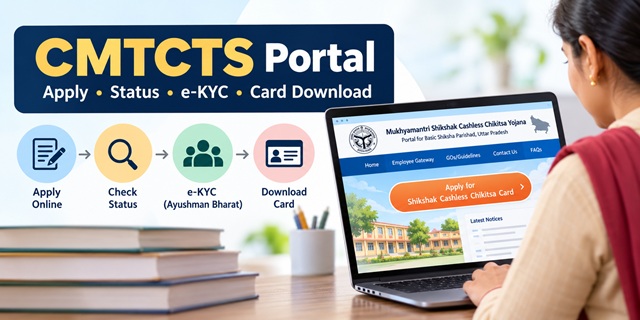
The CMTCTS portal is the official website where employees working in Uttar Pradesh Basic Shiksha Parishad schools can apply for the Mukhyamantri Shikshak Cashless Chikitsa Card. You can access the portal at cmtcts.upsdc.gov.in.
Here is the most important thing to know first: the CMTCTS portal is used to submit and manage your application. You must complete e-KYC and download your card through a different website, the NHA Beneficiary Portal under Ayushman Bharat. Many applicants get stuck because they keep looking for the card on the CMTCTS portal. The card is not downloaded from this portal.
This guide explains what each section of the CMTCTS portal does, how to apply, how to check your application status, and where to go for e-KYC, card downloads and the hospital list. Each process is explained in simple, step-by-step instructions.
This page focuses only on the portal and how to use it. To learn about eligibility and the benefits available under the scheme, read our Mukhyamantri Shikshak Cashless Chikitsa Yojana guide.
CMTCTS Portal: Quick Facts
| Detail | Information |
|---|---|
| Portal | cmtcts.upsdc.gov.in |
| Name on the portal | Mukhyamantri Shikshak Cashless Chikitsa Yojana Portal for Basic Shiksha Parishad, Uttar Pradesh (मुख्यमंत्री शिक्षक कैशलेस चिकित्सा योजना) |
| Government department | Department of Medical Health and Family Welfare, Government of Uttar Pradesh |
| Run and maintained by | SACHIS, the State Agency for Comprehensive Health and Integrated Services |
| Languages | Hindi and English |
| What you can do on this portal | Submit an application, edit your application, add or edit dependents, print your application and check your application status |
| What you do on other websites | Complete e-KYC and download your card through the NHA Beneficiary Portal, and view the hospital list at hem.nha.gov.in |
| What you need before starting | A mobile number linked to your Aadhaar |
| Helpline | 1800-1800-4444 |
| [email protected] |
How the CMTCTS Portal Process Works: Four Steps at a Glance
Think of getting your card as a process with four steps. Only the first two steps involve the CMTCTS portal; e-KYC and card downloads take place on the NHA Beneficiary Portal.
| Step | What happens | Where |
|---|---|---|
| 1. Apply | You complete and submit your application and add your dependents | CMTCTS portal |
| 2. Approval | Education officers review your application and accept or reject it | CMTCTS portal, where you can check your application status |
| 3. e-KYC | You verify your identity and the identities of your family members using Aadhaar | NHA Beneficiary Portal (Ayushman Bharat) |
| 4. Card | You download your State Health Card | NHA Beneficiary Portal (Ayushman Bharat) |
What the CMTCTS Portal Does Not Do
- It does not give you the card. The Print State Health Card option in Employee Gateway is not active. The portal says the card is printed on the Ayushman Bharat portal.
- It does not do your e-KYC. That happens on the Ayushman Bharat portal.
- It has no working Correction Request. The Edit Approved (Correction Request) option was not active on 9 October 2026. See the correction section below.
What You Can Do on the CMTCTS Portal
The CMTCTS portal provides several menu options to help employees apply for a card, manage their applications and access important information. The home page menu contains eight links, each serving a specific purpose.
| Menu Link | What It Is Used For |
|---|---|
| Home | Opens the main page, where you can find the Apply button and the latest notices |
| Employee Gateway | Provides six options for applying, editing an application, managing dependents and printing documents |
| GOs/Guidelines | Provides access to government orders (GOs) and guidelines |
| Contact Us | Displays the helpline number, email address and postal address |
| FAQs | Provides answers to frequently asked questions about the portal and its processes |
| Officer Login | Provides a separate login for officers. Applicants do not need to use this option |
| Check Application Status | Allows you to check the current status of your submitted application |
| Empanelled Hospital List | Helps you find hospitals listed for cashless treatment |
At the bottom of the CMTCTS portal home page, you will also find three shortcuts: Apply Online, Track Status and Find Hospital. These provide quick access to the relevant services without having to navigate through the main menu.
The Six Options in the CMTCTS Employee Gateway
The Employee Gateway contains six options for managing your application and related tasks. The table below explains what each option does, whether it is available through the CMTCTS portal, and where to access it.
| Option | Availability | Link or Instructions |
|---|---|---|
| Apply Card | Available | Open the Apply Card page to begin your application |
| Edit Application | Available | Open Employee Login for editing to access your application details |
| Edit or Add Dependents | Available | Open Employee Login for dependents to manage dependent details |
| Print Application | Available | Open Employee Login for printing to print your application |
| Print State Health Card | Not available on the CMTCTS portal | The card is downloaded through the Ayushman Bharat NHA Beneficiary Portal. See Step 4 for instructions. |
| Edit Approved (Correction Request) | Not active | See the correction section for further information about this option. |
Before You Start Using the CMTCTS Portal
Before applying through the CMTCTS portal, keep one essential requirement ready: a mobile number linked to your Aadhaar.
The portal's Apply Card page clearly instructs applicants to use their Aadhaar-linked mobile number. A different mobile number will not work for this process.
Not Sure Which Mobile Number Is Linked to Your Aadhaar?
The CMTCTS portal provides a guide to help you find your Aadhaar-linked mobile number using the mAadhaar app. Follow these steps before starting your application.
- Open the guide to finding your Aadhaar-linked mobile number.
- Follow the instructions provided in the PDF guide.
- Note down the correct number and enter that same number when using the CMTCTS portal.
Keep your mobile phone with you throughout the application process. Use the number you enter on the portal so you can receive any required communication or verification messages.
Step 1: How to Apply for the Cashless Card Through the CMTCTS Portal
Start With Your Aadhaar-Linked Mobile Number
To begin your application, open the CMTCTS Apply Card page and follow the steps below.
- Open the Apply Card page. Alternatively, visit the CMTCTS portal home page and select Apply for Shikshak Cashless Chikitsa Card.
- Enter your Aadhaar-linked mobile number in the Mobile Number field.
- Enter the letters or characters displayed in the Captcha box.
- Continue to the next screen and follow the instructions displayed by the portal.
Fill In Your Application Details
After starting the application, enter the required personal and other details in the form. Complete every field carefully because the concerned officers will review the information you submit.
- Enter every detail exactly as it appears on your Aadhaar card. Even a minor spelling difference may create problems during verification.
- Read each field carefully and check your entries before moving to the next step.
- Keep your Aadhaar card with you. You may also need the Aadhaar details of your family members when adding dependents.
The portal explains that applicants provide the information in the application and the concerned officers subsequently verify it. Incorrect or mismatched details may lead to the rejection of your application, so review all information carefully before submitting the form.
Add Your Dependents on the CMTCTS Portal
Dependents are family members who can be included with you under the applicable rules. Add their details as part of your application, ensuring that the information you enter is accurate.
If you forget to add a family member or need to change a dependent's name or details later, you can use the CMTCTS Edit or Add Dependents login.
Submit and Print Your CMTCTS Application
Once you have completed the form and added the required dependent details, review the application and submit it. Follow these steps to keep a copy for your records.
- Review the entire application and check that all the details are correct.
- Submit your application through the CMTCTS portal.
- Open the Print Application login to print or save a copy of your submitted application.
- Keep the printed or saved copy in a safe place. You may need it if an officer asks you to clarify any information in your application.
Employee Login on the CMTCTS Portal: Edit, Add Dependents and Print
Three options in the CMTCTS Employee Gateway open the same employee login page, titled Sign in for Employee Login. The main difference is the link used to open the page, which determines whether you can edit your application, manage dependents or print your application.
How to Edit Your Application
- Open the CMTCTS Edit Application login.
- Enter your login details in the required fields.
- Enter the captcha displayed on the screen. The captcha is case-sensitive, which means uppercase and lowercase letters are treated differently.
- Sign in, make the necessary changes and save them.
How to Edit or Add Dependents
- Open the CMTCTS Edit or Add Dependents login.
- Sign in using your login details and complete the captcha verification.
- Add a new family member or update the details of an existing dependent, as required.
How to Print Your Application
- Open the CMTCTS Print Application login.
- Sign in and complete the captcha verification.
- Print your application or save it as a PDF on your phone for future reference.
Common CMTCTS Employee Login Problems
- The captcha keeps failing. Enter the captcha again carefully. Remember that uppercase and lowercase letters are different.
- You are not registered. The login page includes a link labelled "Not registered? Sign up here". On 9 October 2026, that link did not open a separate page. Try starting from the Apply Card page instead.
- You are still unable to log in. Contact the helpline at 1800-1800-4444 for assistance.
Step 2: Application Approval by Education Officers
Who Approves Your CMTCTS Application?
After you submit your application through the CMTCTS portal, the concerned education officers review the details. According to the portal's instructions, the verification process involves the relevant officers, including the Block Education Officer (BEO) and the District Inspector of Schools (DIOS). The Basic Shiksha Adhikari (BSA) provides the approval required to proceed to the next stage.
The officers may accept or reject your application after reviewing the submitted information. While your application is being reviewed, you can check its status through the CMTCTS portal.
How to Check Your CMTCTS Application Status
Use the portal's application status page to find out where your application stands. Follow these steps:
- Open the CMTCTS Check Application Status page.
- In the Search By field, select the method you want to use. Aadhaar Number is one of the available options.
- Enter your Aadhaar number in the Enter Aadhar field.
- Enter the Security Code displayed on the screen.
- Click the search button and review the result displayed by the portal.
If the portal does not show a result, wait a day and try again. If your application status still does not appear, contact your education officer or call the helpline for assistance.
What to Do If Your Application Is Rejected
If the CMTCTS portal shows that your application has been rejected, follow these steps to understand the reason and determine what you can do next.
- Contact your education officer and ask why the application was rejected.
- Check the application for incorrect information. Common issues may include a name, number or spelling that does not match your Aadhaar details.
- If the portal allows you to make the necessary changes, use the CMTCTS Edit Application login.
- Check your application status again after a few days.
Step 3: Complete e-KYC on the Ayushman Bharat Portal
e-KYC means electronic Know Your Customer verification, a process used to verify your identity through Aadhaar. This step is not completed on the CMTCTS portal. Instead, you need to use the NHA Beneficiary Portal or the Ayushman app.
Complete this step only after your application has been approved.
- Wait for the approval message on your registered mobile number.
- Open the NHA Beneficiary Portal, or open the Ayushman app and select Beneficiary.
- Log in using your registered mobile number and enter the OTP (one-time password) you receive.
- Select the PMJAY scheme and then choose the sub-scheme associated with this yojana.
- Select Uttar Pradesh as your state and choose your district.
- Enter the Family ID received through SMS, complete the captcha and click Submit.
- The portal will display the names of your approved family members.
- Click Do e-KYC next to a family member's name and follow the Aadhaar verification instructions shown on the screen. If prompted, take a live photograph.
- Repeat the process for every family member who needs e-KYC.
The NHA Beneficiary Portal is separate from the CMTCTS portal, and its screens and instructions may change. If a screen looks different from the steps described here, follow the instructions displayed on the portal or contact the helpline for assistance.
Step 4: Download Your State Health Card
After completing e-KYC, you can download your State Health Card through the same NHA Beneficiary Portal. The Print State Health Card option in the CMTCTS Employee Gateway is not active, so you must use the NHA portal for this step.
- Complete e-KYC for the relevant family member.
- Check the button displayed next to the person's name. After e-KYC is completed and the download option becomes available, it changes from Do e-KYC to Download.
- Click Download to download the card.
- Save the card as a PDF on your phone and keep a printed copy for reference.
- Repeat these steps for each family member who has completed e-KYC and has a card available to download.
If you lose your card, log in to the same NHA Beneficiary Portal and download it again, provided the card remains available there.
Aadhaar or Mobile Number Correction on the CMTCTS Portal
If you entered an incorrect Aadhaar number or mobile number in your application, you may need to follow the portal's correction process to get the details updated.
As of 9 October 2026, the Edit Approved (Correction Request) option in the CMTCTS Employee Gateway was not active. Instead, the portal's home page provides two correction forms listed in notices dated 20 May 2026.
- Open the CMTCTS portal home page.
- Find the Important Notices section and select View All.
- Choose the appropriate form: the application for Aadhaar number correction or the application for mobile number correction.
- Download the relevant form and fill in the required details carefully.
- Submit the form according to the instructions in the notice. If the notice does not specify where to submit it, contact the helpline for guidance.
Hospital List on the CMTCTS Portal
The Empanelled Hospital List option on the CMTCTS portal redirects users to the National Health Authority (NHA) hospital search website. The hospital list is not hosted directly on the CMTCTS website. You can access it through hem.nha.gov.in/search.
- Click Empanelled Hospital List on the CMTCTS portal home page, or open the NHA hospital search page directly.
- Use the search options available on the page to look for hospitals in or near your preferred location.
- Note the hospital's name and address before visiting.
The CMTCTS home page also contains a notice dated 5 February 2026 about an updated list of empanelled hospitals. Check the notice and the hospital search page for the relevant information before planning your visit.
Important Notices on the CMTCTS Portal
The CMTCTS portal home page displays important notices related to applications, card downloads, government orders and correction requests. The following notices were listed on the home page on 9 October 2026.
| Date | Notice |
|---|---|
| 20 May 2026 | Process flow for application submission and card download |
| 20 May 2026 | Government order (Shasanadesh) related to the scheme |
| 5 February 2026 | Updated list of empanelled hospitals |
| 20 May 2026 | Application form for correcting the Aadhaar number in a submitted application |
| 20 May 2026 | Application form for correcting the mobile number in a submitted application |
To view all available notices, open the CMTCTS portal home page and click View All in the Important Notices section. The home page also includes an Important Videos section that you can check for additional guidance.
Which CMTCTS Portal Should You Use?
The CMTCTS portal discussed in this guide is specifically intended for Basic Shiksha Parishad. Its full name identifies it as the "Portal for Basic Shiksha Parishad, Uttar Pradesh". Before applying, make sure you are using the portal intended for your department.
- If you work in a Basic Shiksha Parishad school, use cmtcts.upsdc.gov.in.
- Staff in other education departments may need to use separate portals from the same portal network. The addresses include mcmtcts.upsdc.gov.in for secondary education and hcmtcts.upsdc.gov.in for higher education. Check your department's official order to confirm which portal applies to you.
- Other Uttar Pradesh state government employees may use a different cashless medical scheme and a separate portal.
Using the wrong portal can cause application problems or delays. Confirm your department and follow the instructions in the relevant official order before submitting an application.
CMTCTS Portal Problems and Solutions
If you encounter an issue while using the CMTCTS portal, check the following common problems and suggested solutions.
| Problem | What to Do |
|---|---|
| The Apply Card page does not accept your mobile number | Make sure you are entering the mobile number linked to your Aadhaar. If you are unsure which number is linked, follow the portal's mAadhaar guide. |
| The captcha keeps failing | The captcha is case-sensitive. Enter it carefully, paying attention to uppercase and lowercase letters. |
| You cannot find a card to print on the CMTCTS portal | The card is downloaded through the NHA Beneficiary Portal after the application is approved and the required e-KYC is completed. |
| Your application status does not appear | Wait a day and check again. If the status still does not appear, contact your education officer or call the helpline. |
| The Correction Request option does not work | The option was not active as of 9 October 2026. Check the portal's Important Notices section for the Aadhaar number and mobile number correction forms. |
| The Sign up link does not open | Try starting the process from the Apply Card page. |
| Your application was rejected | Ask the concerned officer for the reason, correct the error if the portal permits it, and check your application status again. |
CMTCTS Portal Helpline, Email and Address
If you need assistance with the CMTCTS portal, application submission, login or correction process, use the contact details listed below.
| Contact Channel | Details |
|---|---|
| Helpline | 1800-1800-4444 |
| [email protected] | |
| Address | Chief Executive Officer, Ayushman Bharat (SACHIS), 4th Floor, Navchetna Kendra, 10, Ashok Marg, Hazratganj, Lucknow, Uttar Pradesh 226001 |
| Contact Page | CMTCTS Contact Us page |
The portal does not display the helpline's operating hours. When calling or emailing for help, keep your application details ready so you can explain the issue clearly. Do not share your OTP or other confidential authentication details with anyone.
Add new comment